
Getting Started
The setup that makes everything else faster, plus a look at what your clients see when you share with them.
8 videos
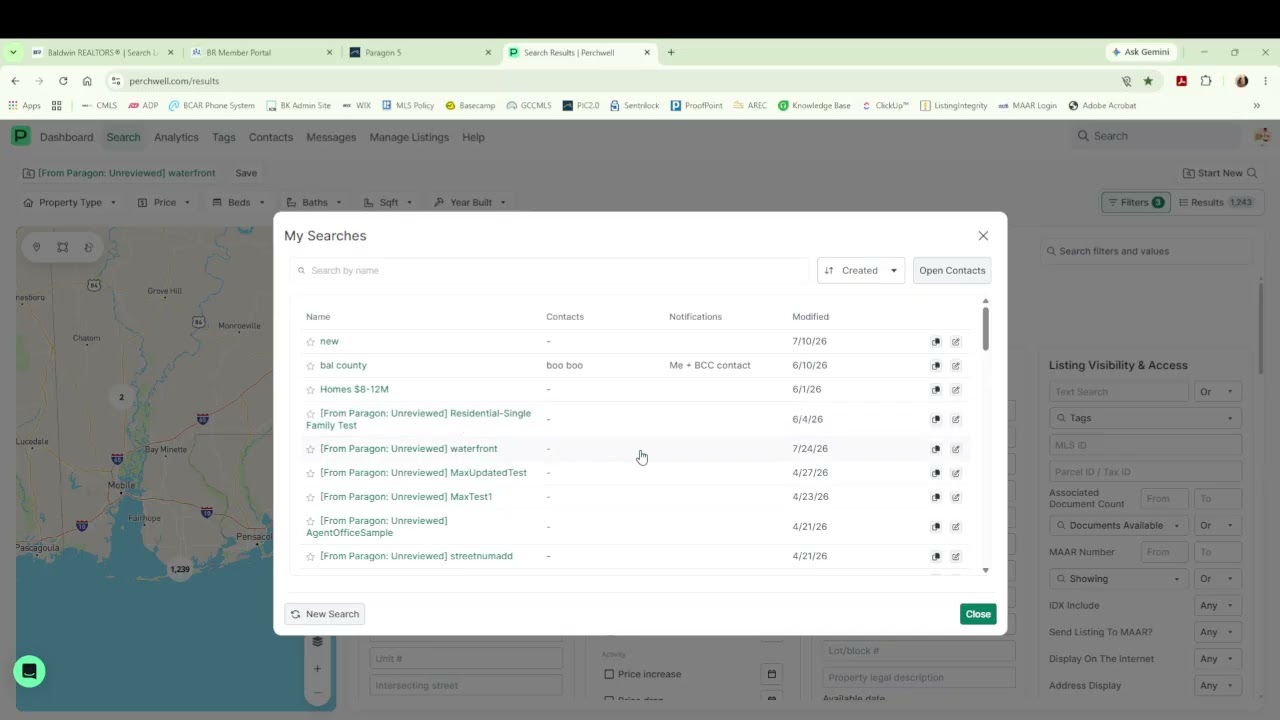
Review the data that came over from Paragon
Your contacts, saved searches, and draft listings all made the trip. Walk through each one: click into a contact to update details or send an invitation, check that your saved search results look right before renaming them and turning on alerts, and review the drafts waiting for you in Manage Listings.
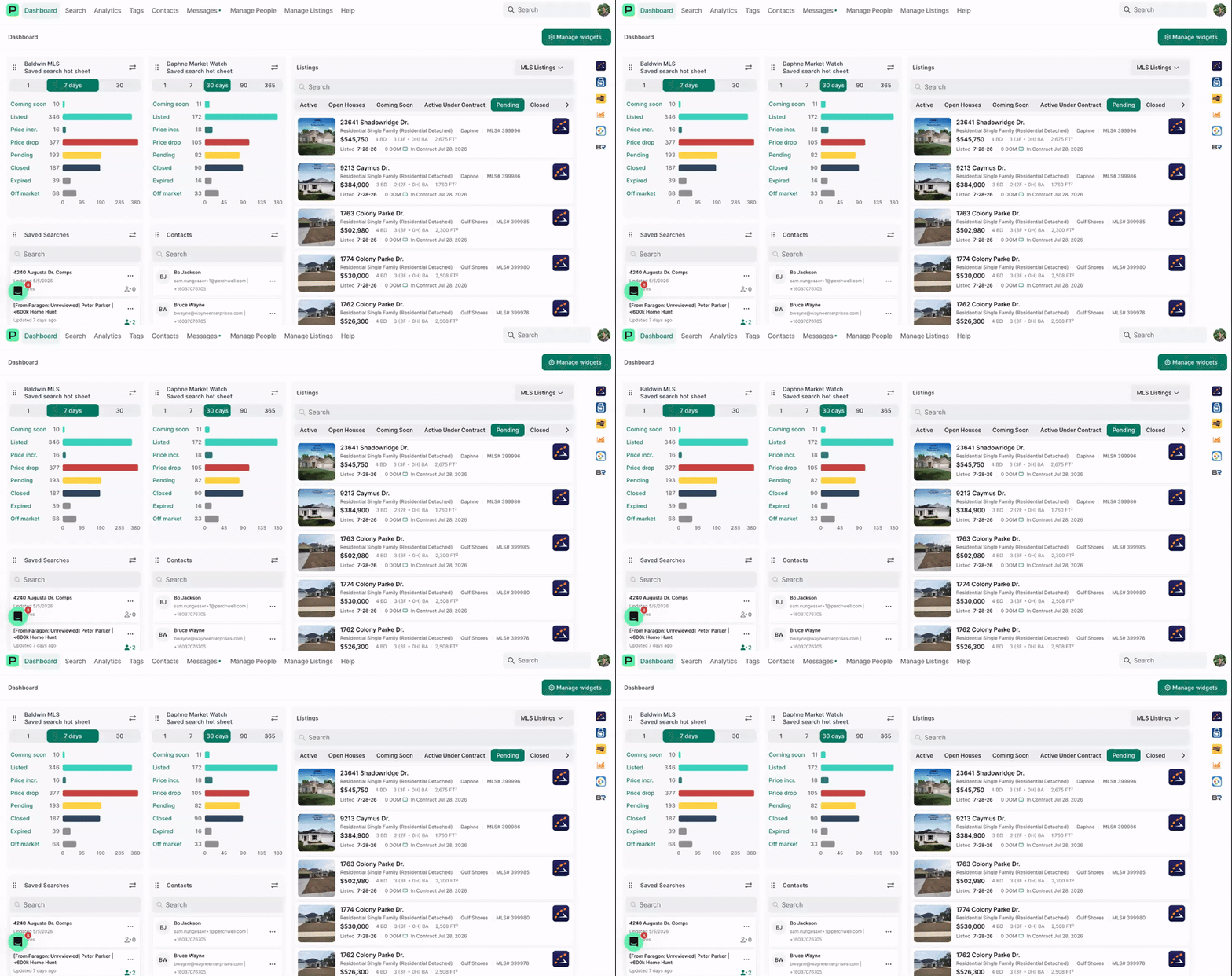
Create communication templates
Build reusable email templates for the outreach you send over and over, then pull them up anywhere you contact an agent or client. Set them up once in Settings and stop rewriting the same message.
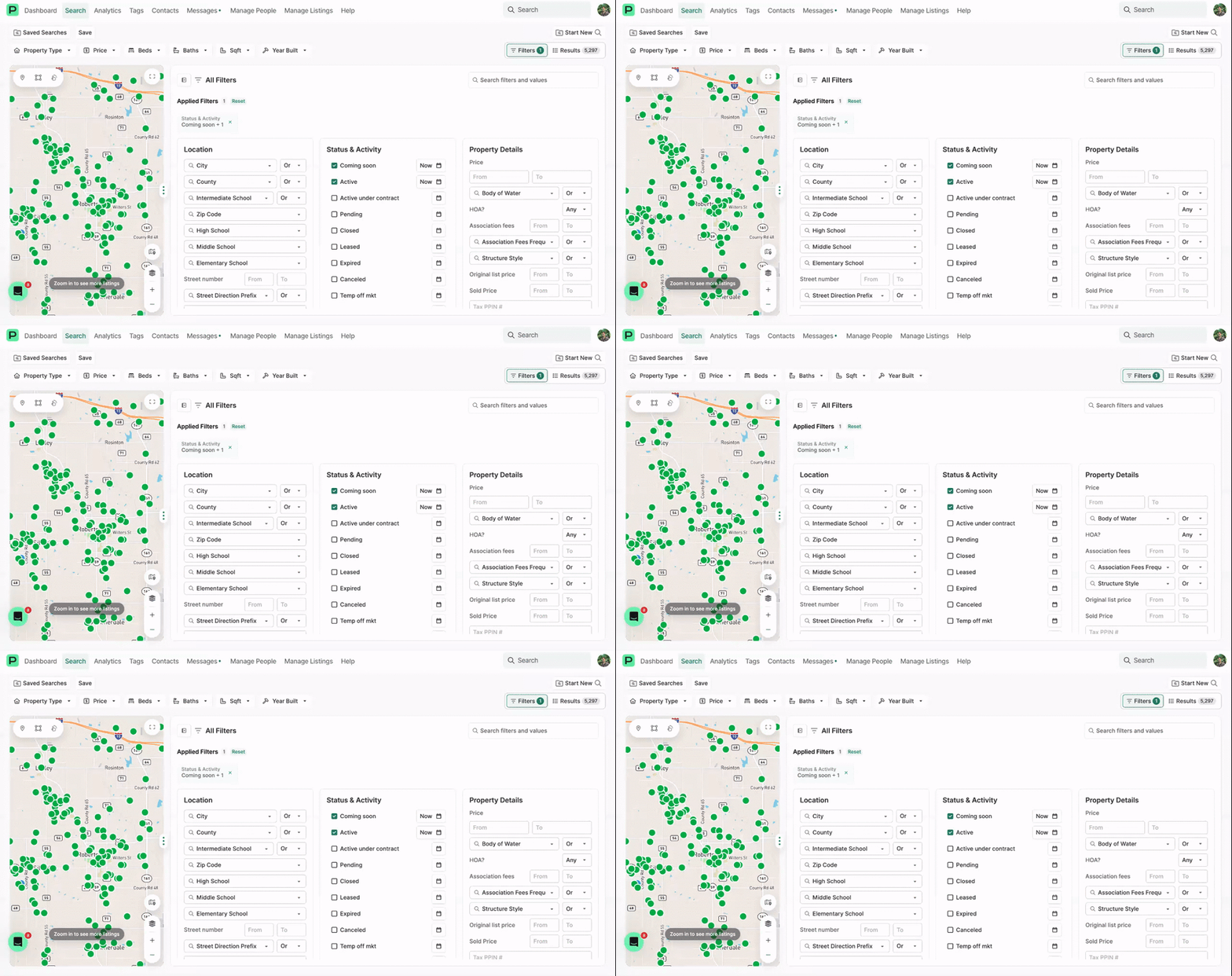
Save a search columns template
Pick the columns you actually want to see when you scan search results, drag them into the order that makes sense to you, and save it as your default. Every search from then on opens the way you like it.
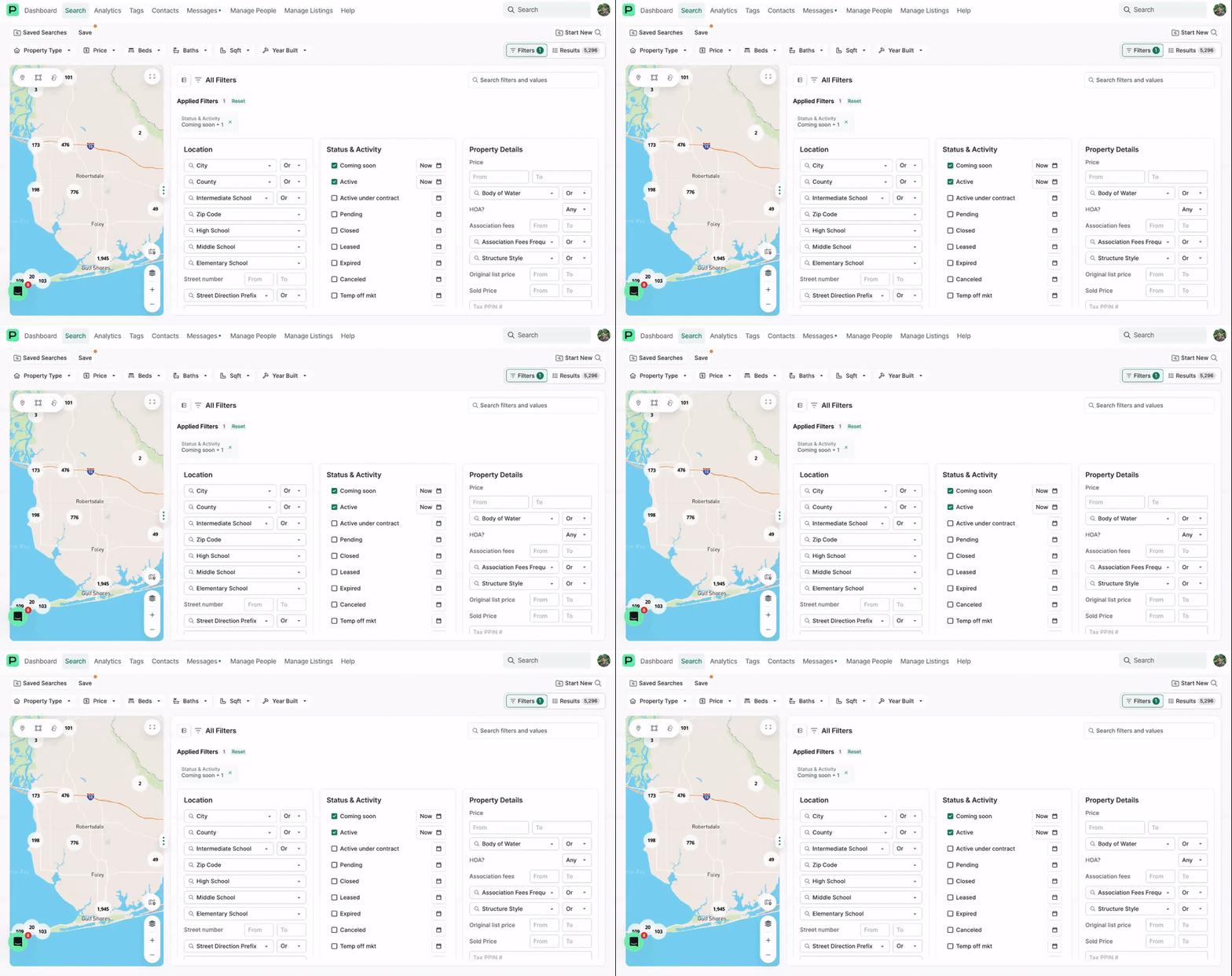
Create a default search to start from
If you run the same criteria again and again, save it once and set it as your starting point. Each new search begins from that base and you layer on whatever else the client needs.
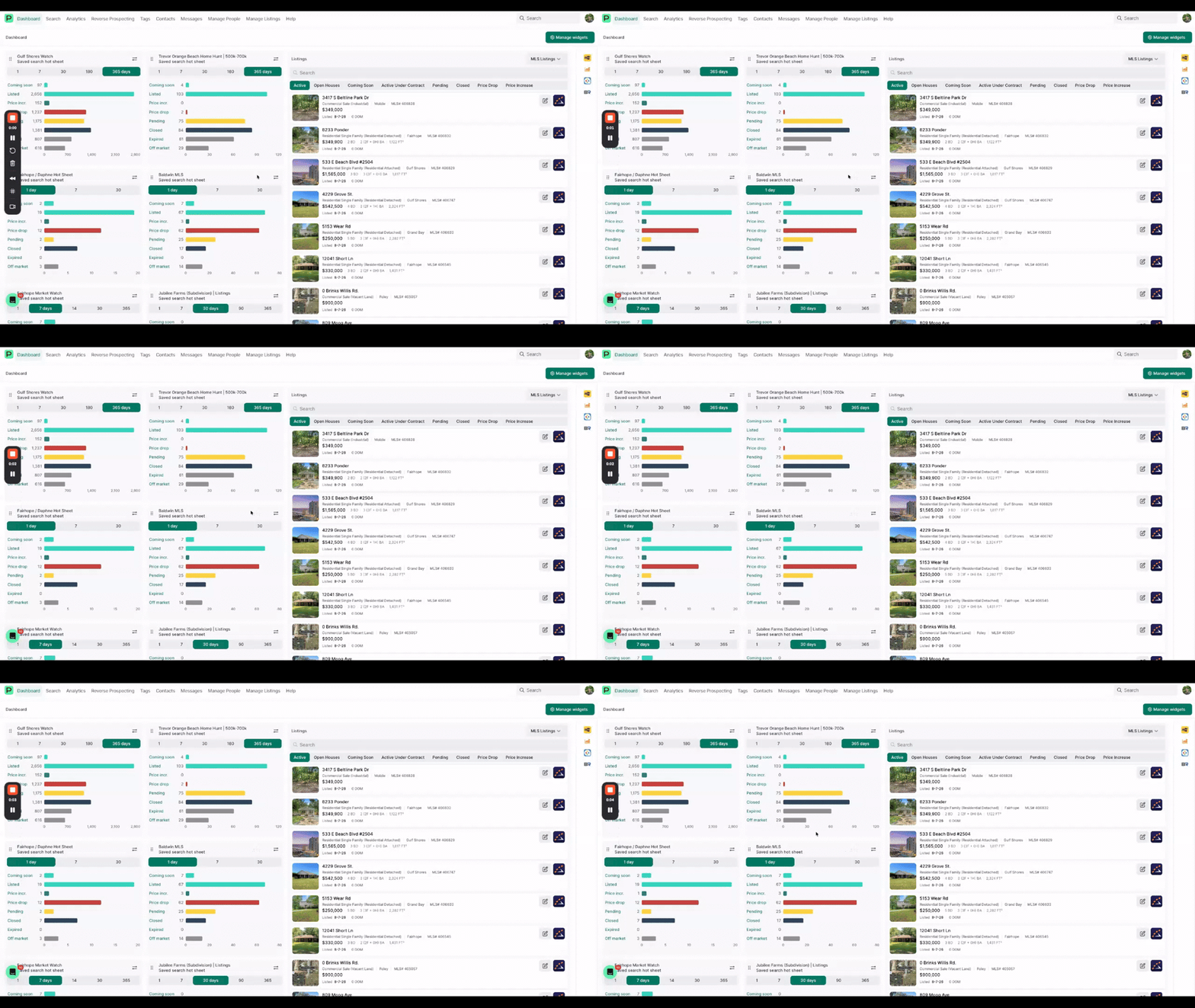
Add a contact and invite them to Perchwell
Add a new client from the Contacts page with just the basics, send them an invitation, then go straight to your search and share a listing with them through messages. Start to finish in a couple of minutes.
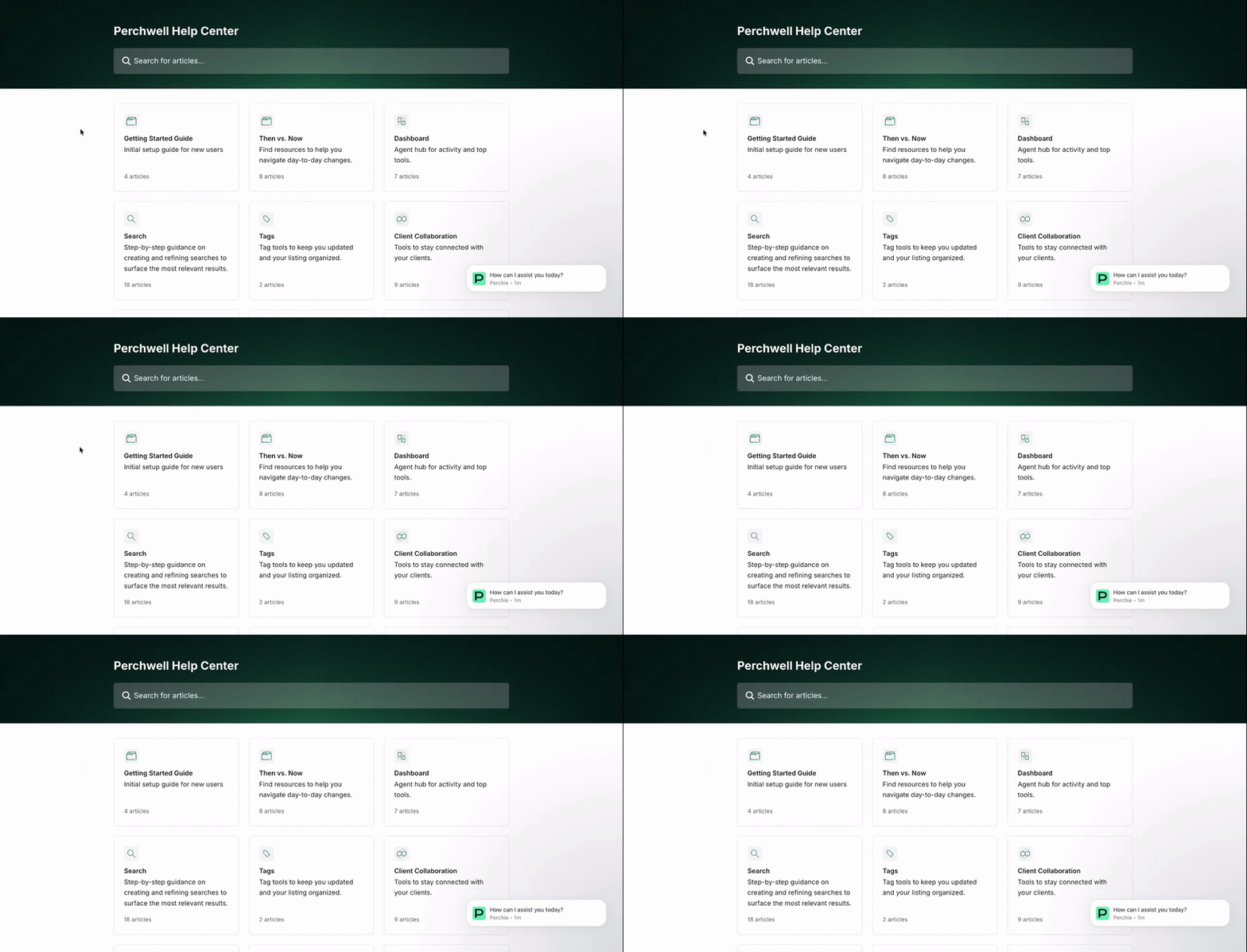
Key differences in your search filters
Most of the filters you know carry straight over. A handful changed because your MLS Board chose to simplify how listings get searched, added, and sent to vendors. Active Under Contract is now Active with a construction status of Under Construction. Pool Features now covers both private and public pools. Equitable Interest Pending is now Pending with Equitable Interest set to Yes. Expired Under Contract is now simply Expired, and you can move it back to Active Under Contract, Pending, or Active as needed. Boat Slip, Garage, and Fractional Ownership are now sub-types under Residential Single Family. When you cannot find something, use the Filter Filter to search filters by name.
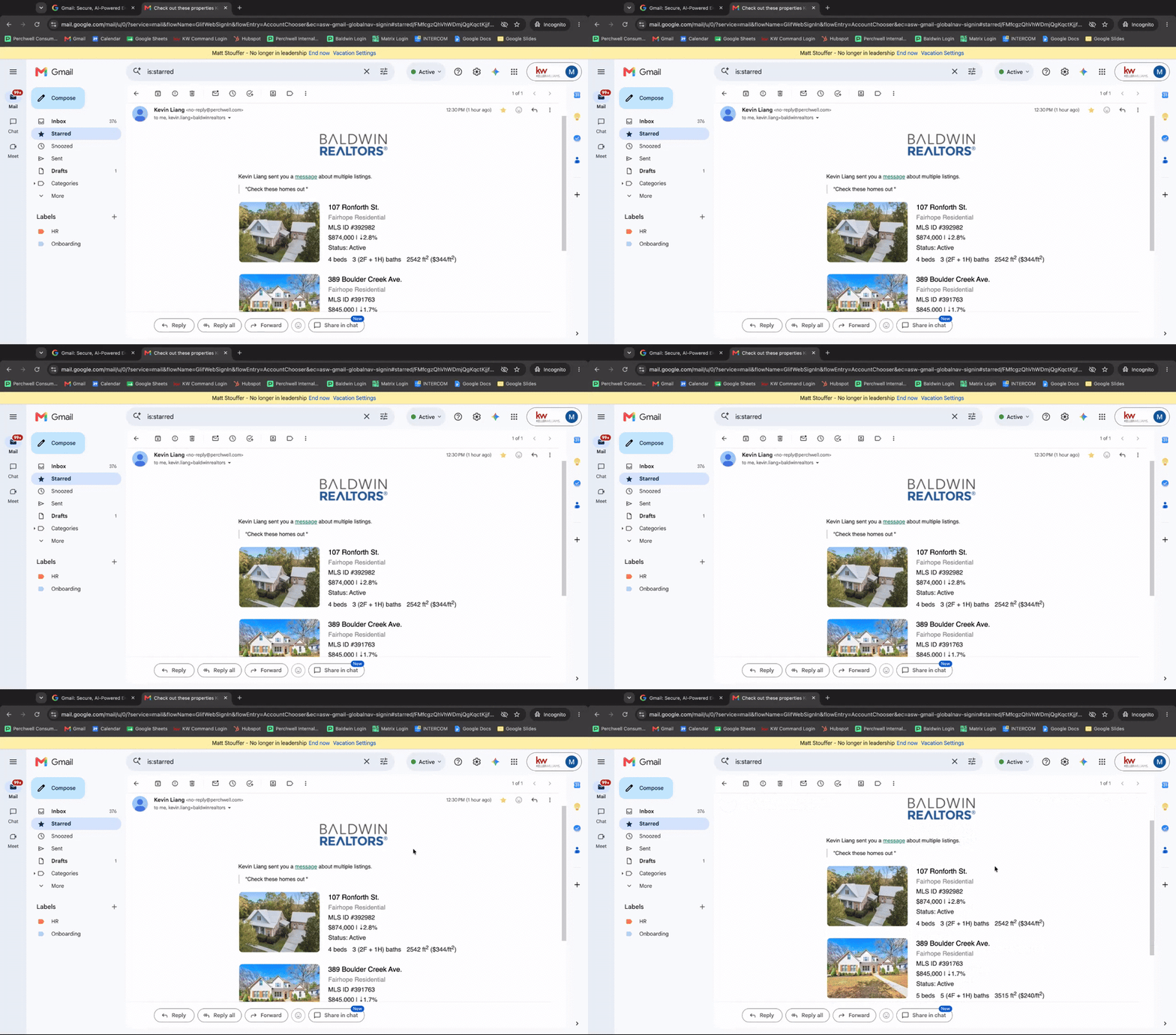
See exactly what your client sees
Before you send anything, look at it from their side. This walks through the real email that lands in their inbox, how the listings look when they open them on desktop and in the app, and how their saved search appears. Your name and contact stay front and center on every client-facing page, so questions come back to you. Clients can react to what you share, and inviting them keeps the whole conversation in one place.
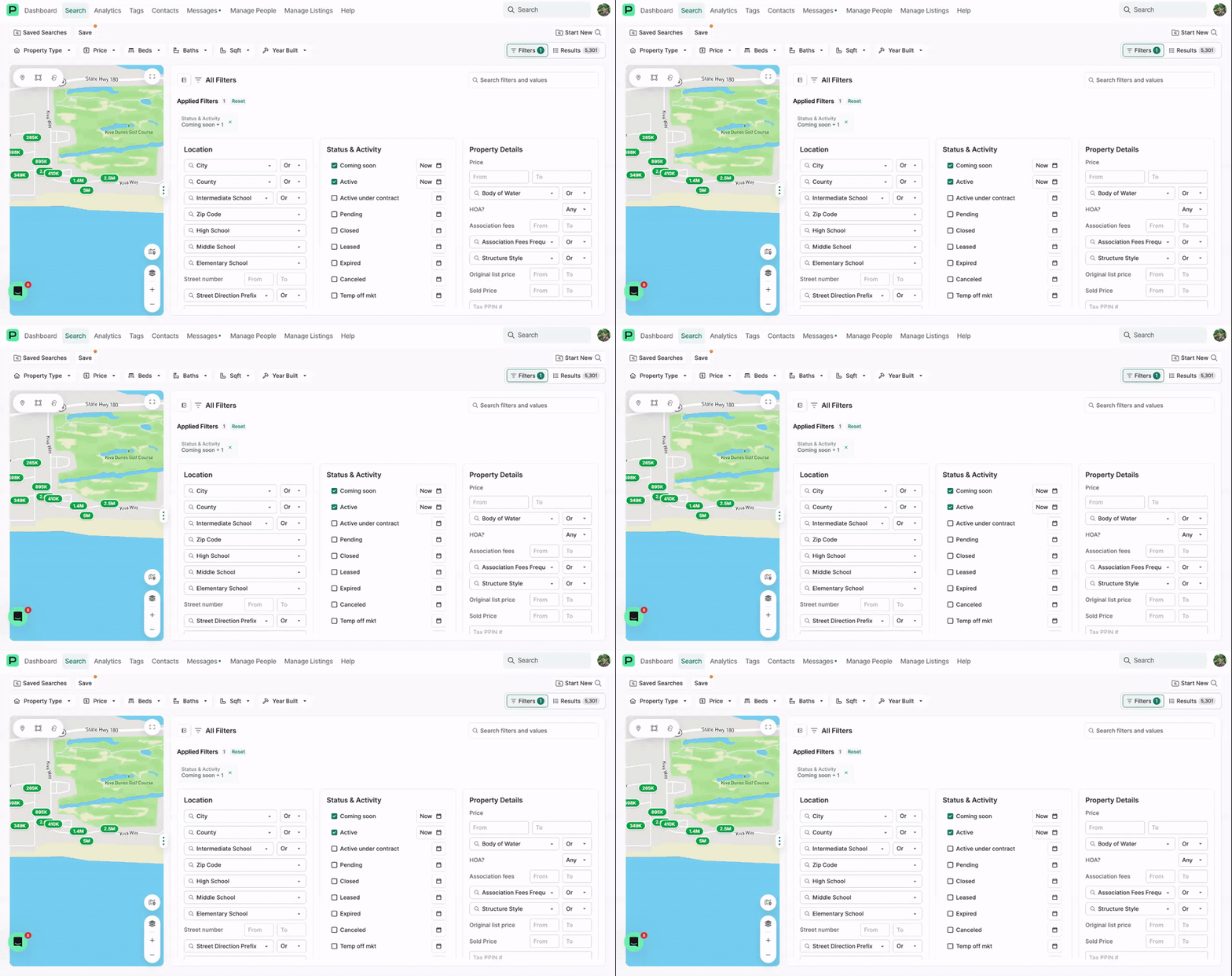
Find your way around search results
A quick tour so you always know where you are and how to get back. Use the View control to move between your filters and your results list. Click any column header to sort. Preview a listing inline, or open the full detail page, and use the three dot menu on a row to reach that listing's actions. The View switcher always returns you to your full results.
Searching and Maps
Build a search from filters, or start on the map when a client cares about a specific spot.
3 videos
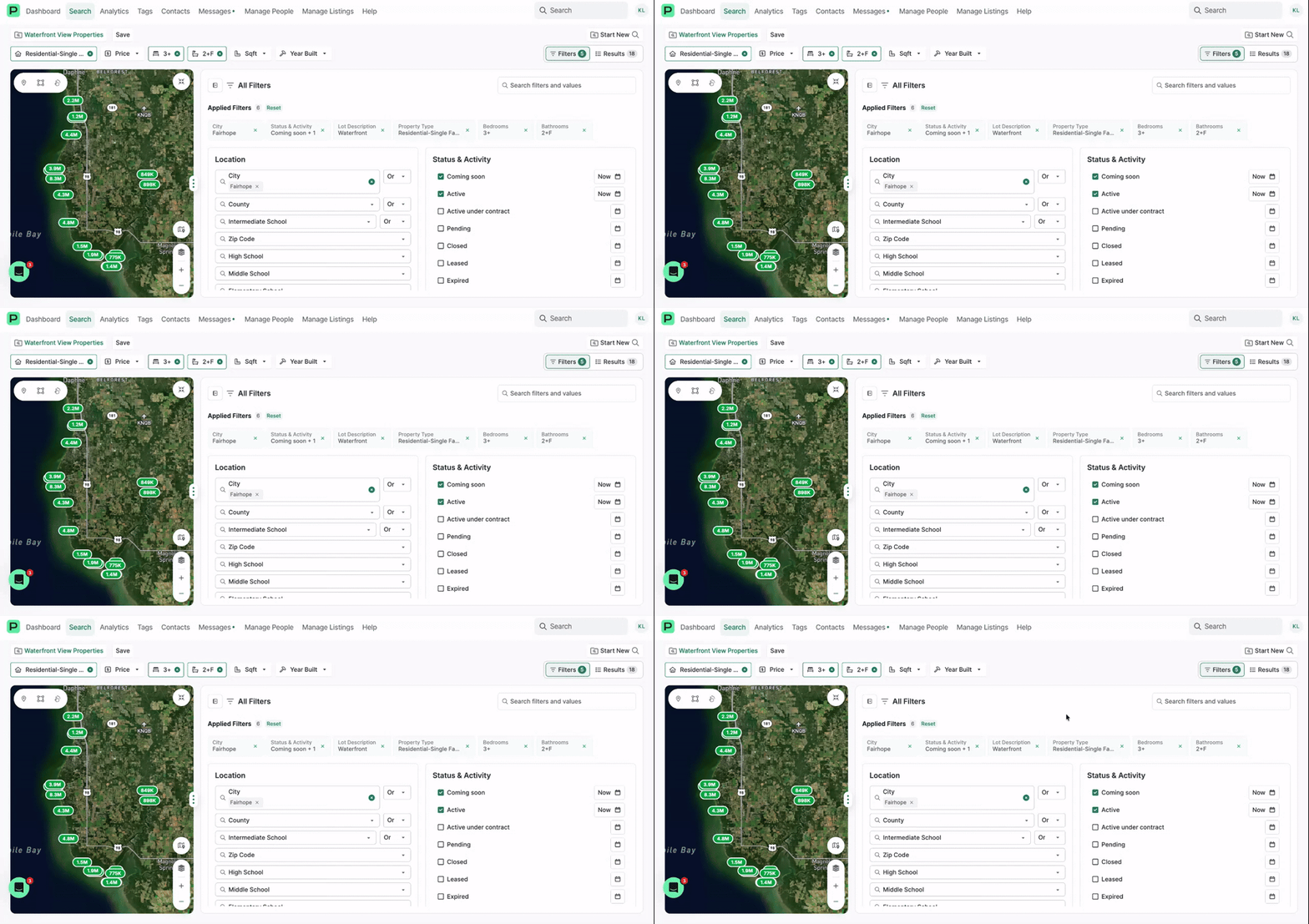
Run a search
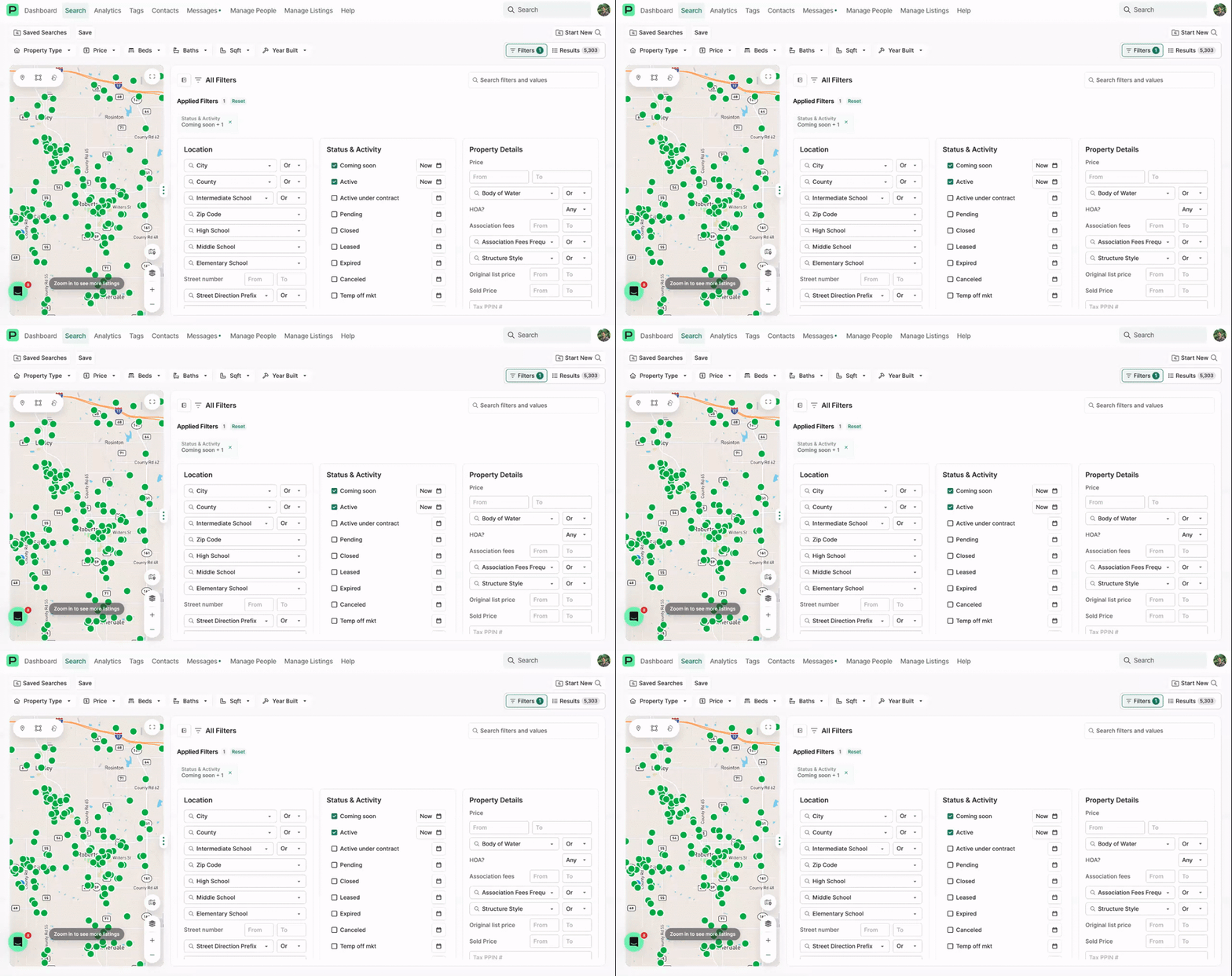
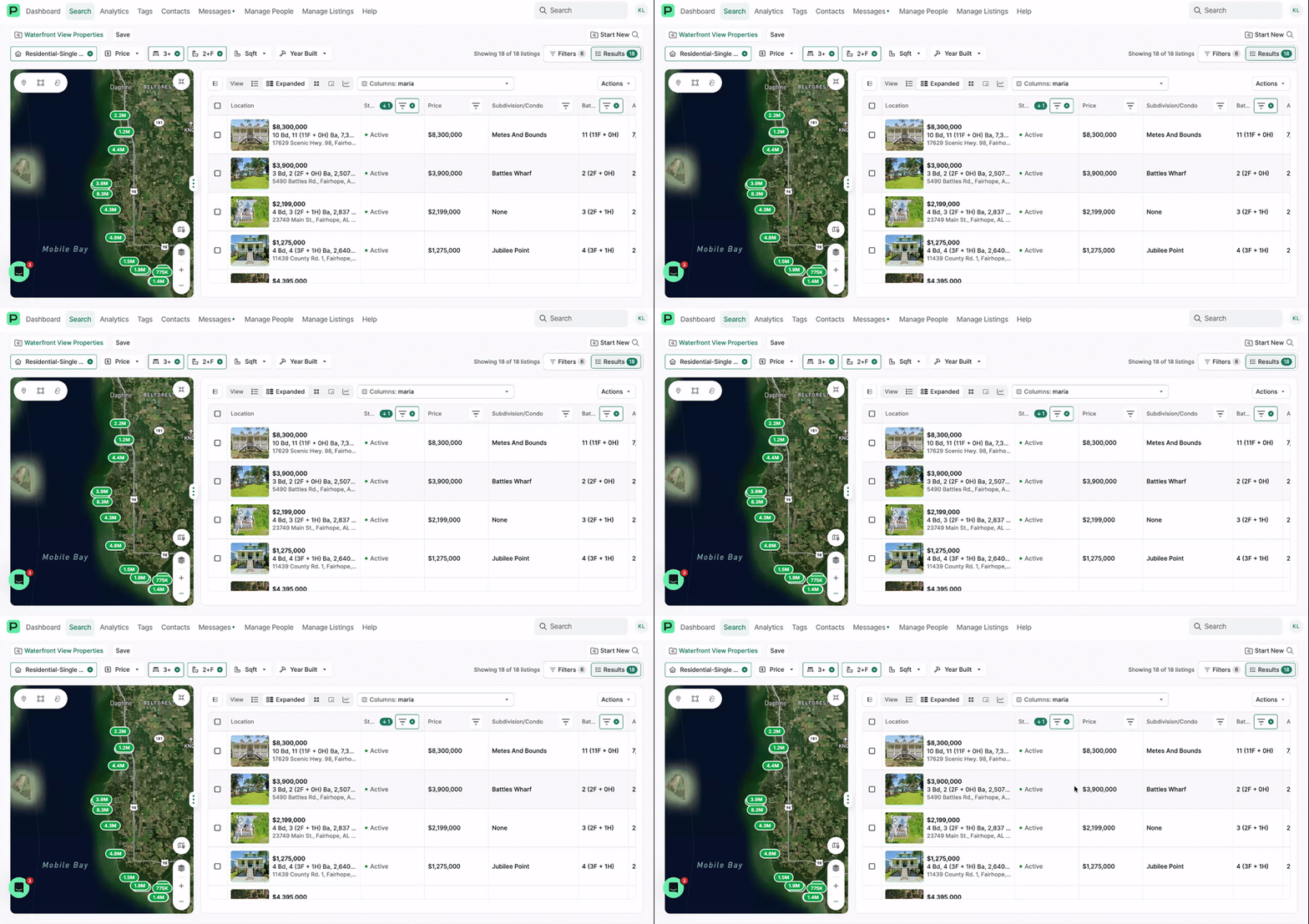
The same searches you run today, shown the Perchwell way. Your client wants a three bedroom, two bath home in a subdivision with a waterfront view, so you build the filters, save the search, and send the listings over. When a filter is not where you expect it, use the Filter Filter to look it up by name instead of hunting through groups.
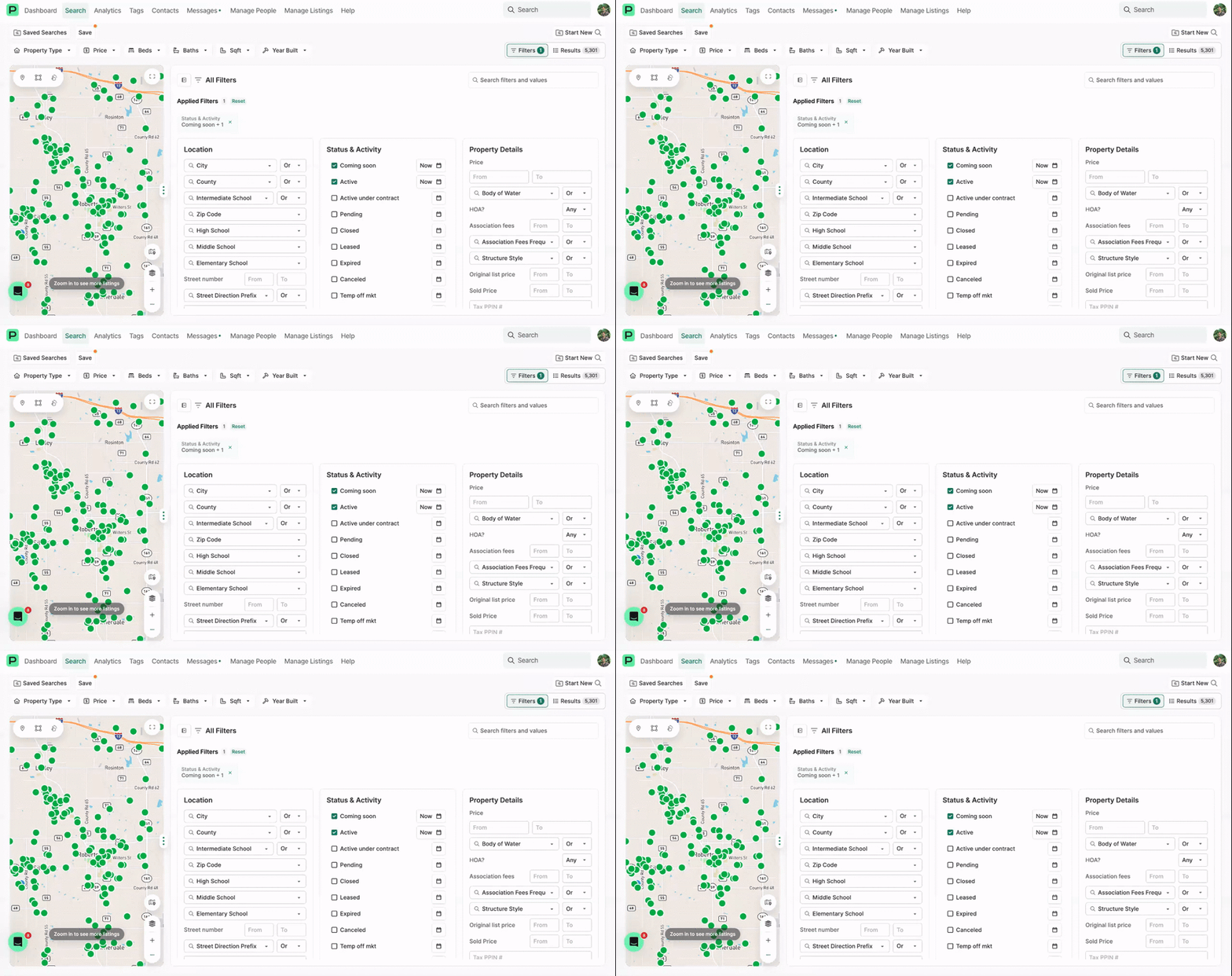
Run a map search, part 1: the radius tool
When a client cares about a specific spot rather than a whole city, start on the map. This covers drawing a radius and adding commute distances so results line up with where they actually need to be.
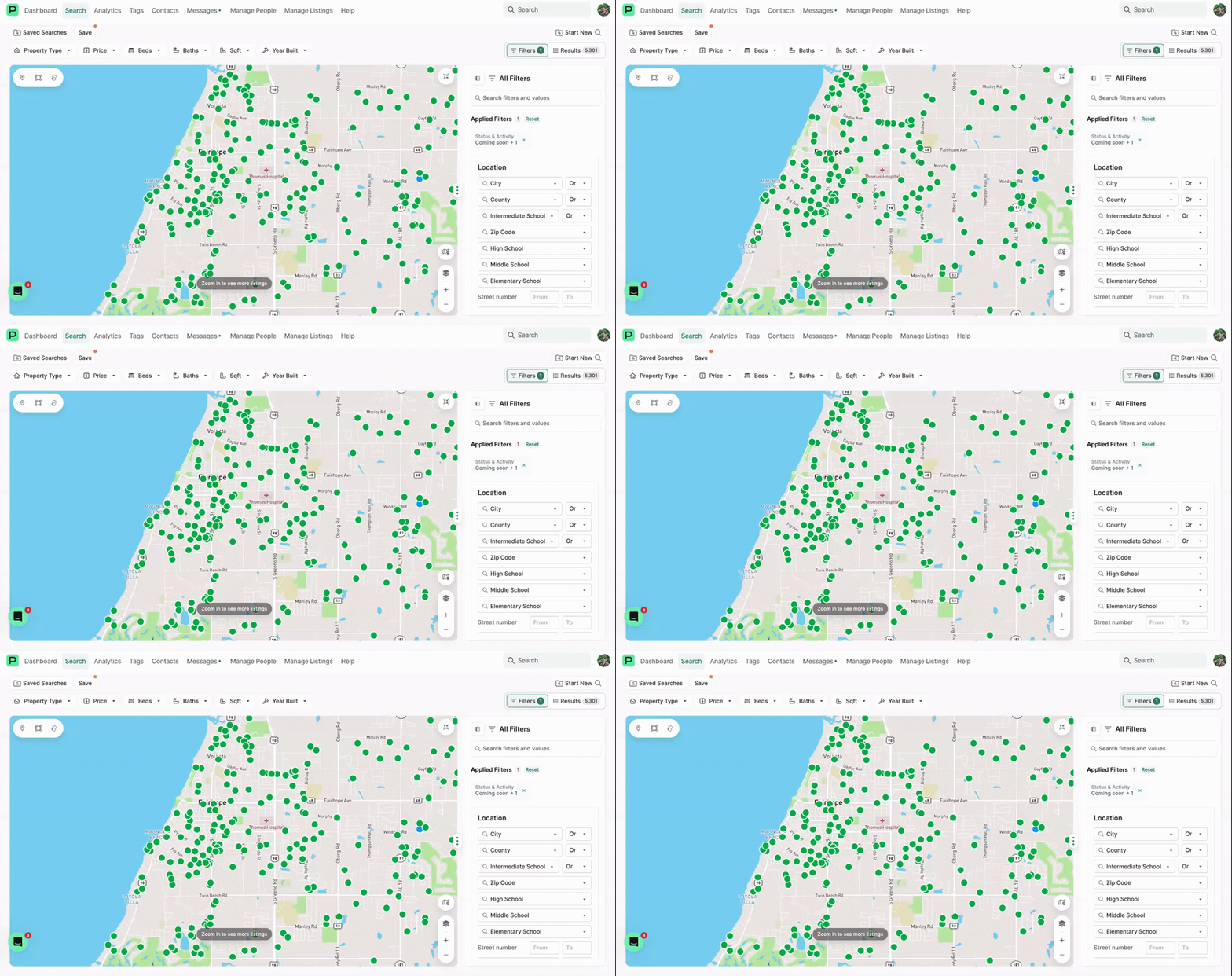
Run a map search, part 2: polygons, freehand, overlaps, and exclusions
The rest of the map toolkit. Draw a polygon or a freehand shape, stack several shapes together, choose whether you want everything inside all of them or only the overlap, and carve out an area you want excluded.
Sharing with Clients
Send listings and reports by email, text, or link, with or without inviting the client to Perchwell.
4 videos
Share a listing without inviting the client, on your computer
Not every client needs a Perchwell account. Select one listing or several, then send them by email or copy a public link you can text over. No invitation required.
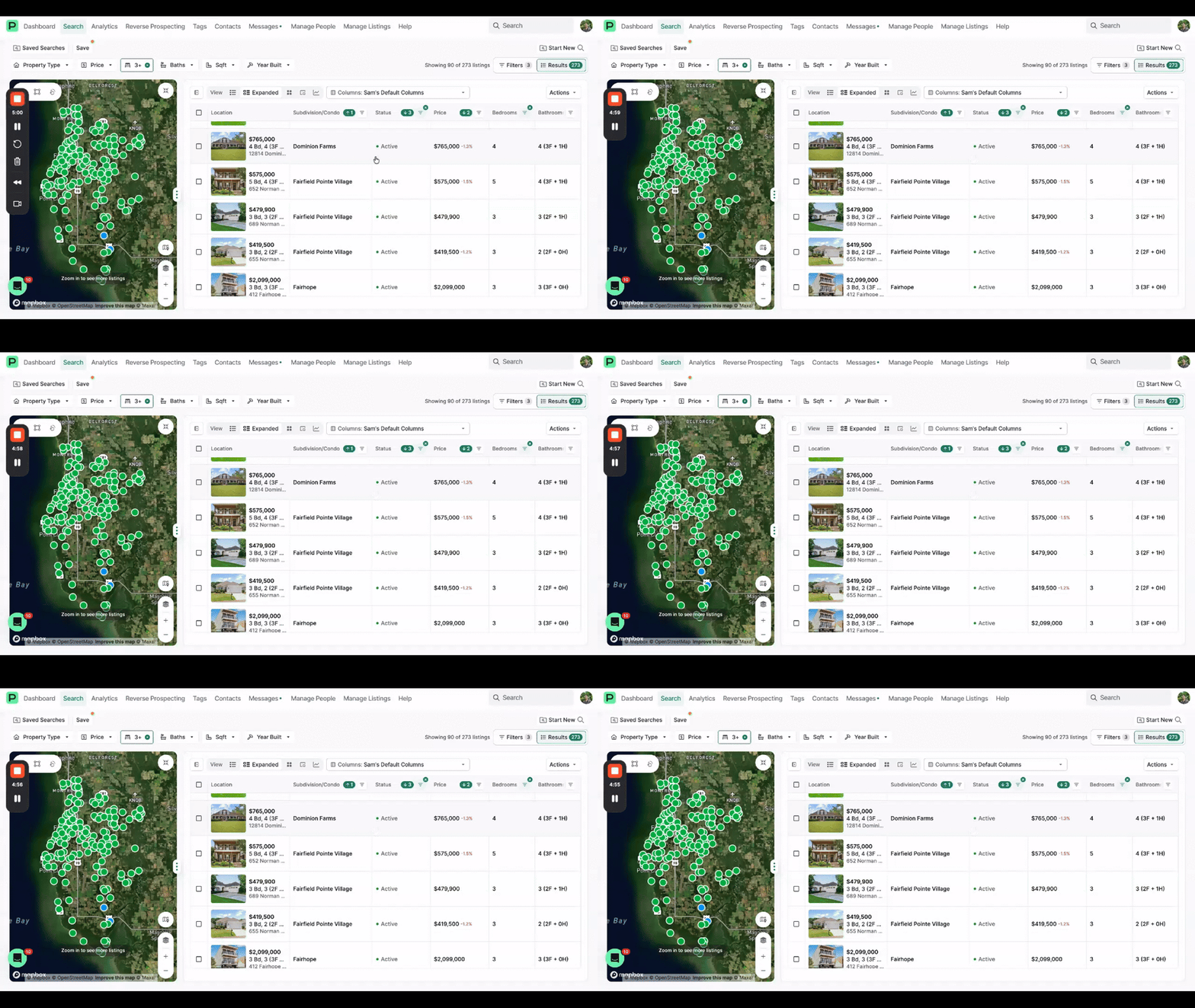
Share listings via SMS text from your computer
Send one or multiple listings from the Search page straight to your contacts by text message. Select the listings you want, enter the phone numbers, and your contacts will receive a mobile-friendly link with the listings you picked.
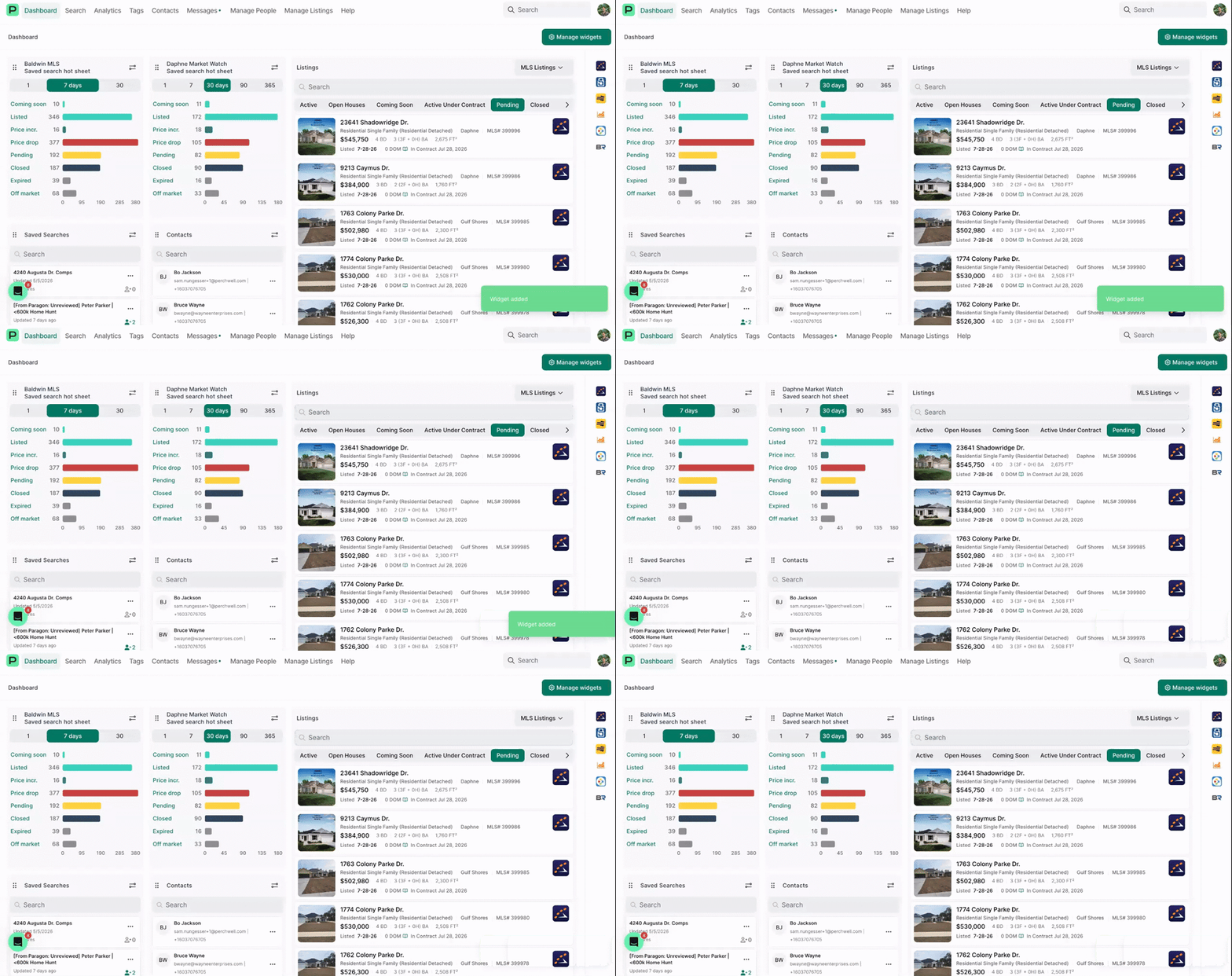
Share a listing without inviting the client, on your phone
The same thing from the app. Pull up the listing through Universal Search, select what you want to send, then email it, copy the public link, or share it out through your phone's share sheet.
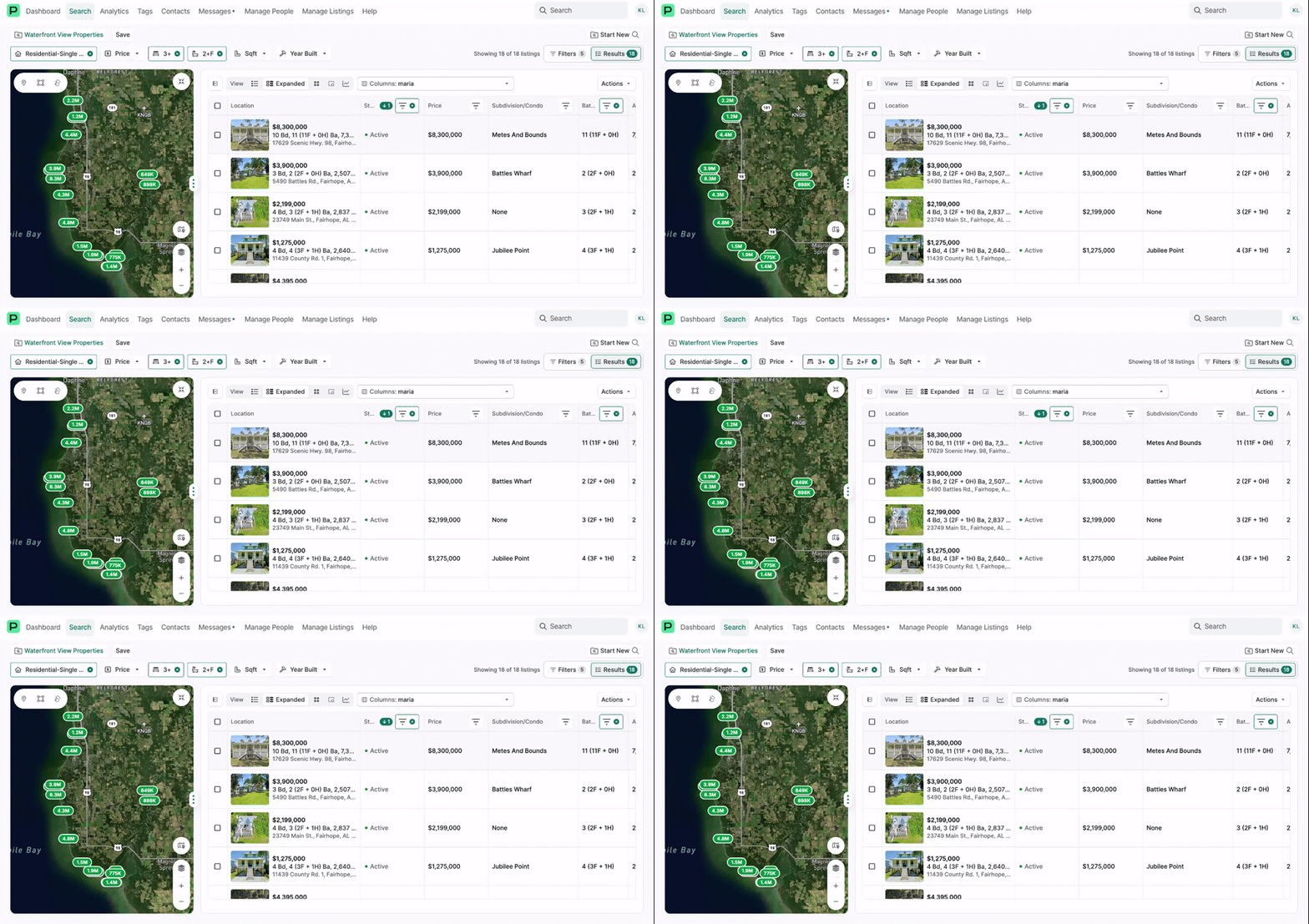
Share a one page report with your client
From the same search, drop your selected listings into a report and send it. You can choose a property report, a listing presentation, and other layouts, then text or email the finished report straight to the client.
Saved Searches, Alerts, and Hot Sheets
Save the searches you run often, let alerts handle the follow up, and keep market activity on your dashboard.
4 videos
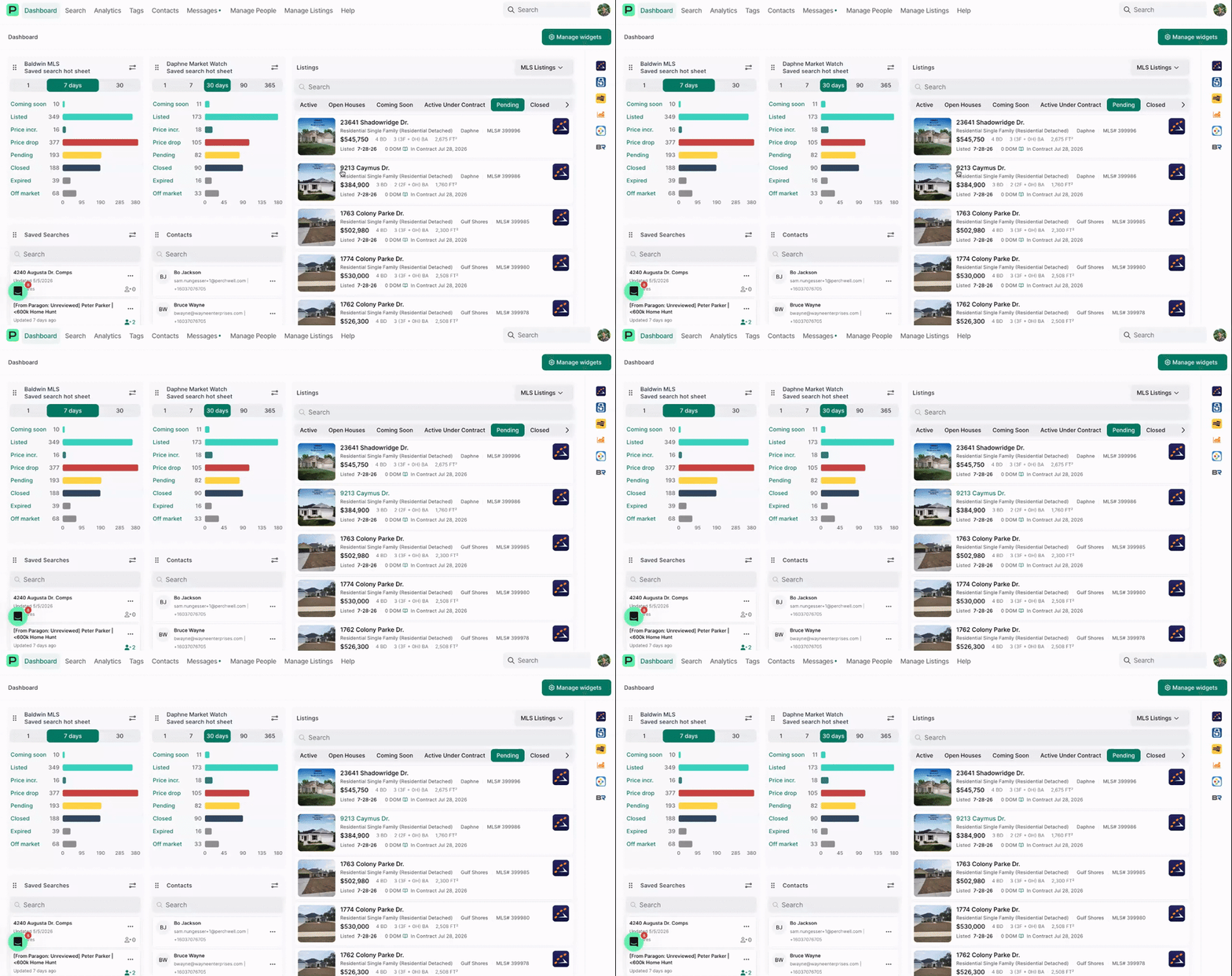
Set up a hot sheet for a city you work in
Run a search for the city you cover, save it, then add it to your dashboard as a hot sheet. Now every login opens with that market activity in front of you, and you can click straight from the bar into the listings.
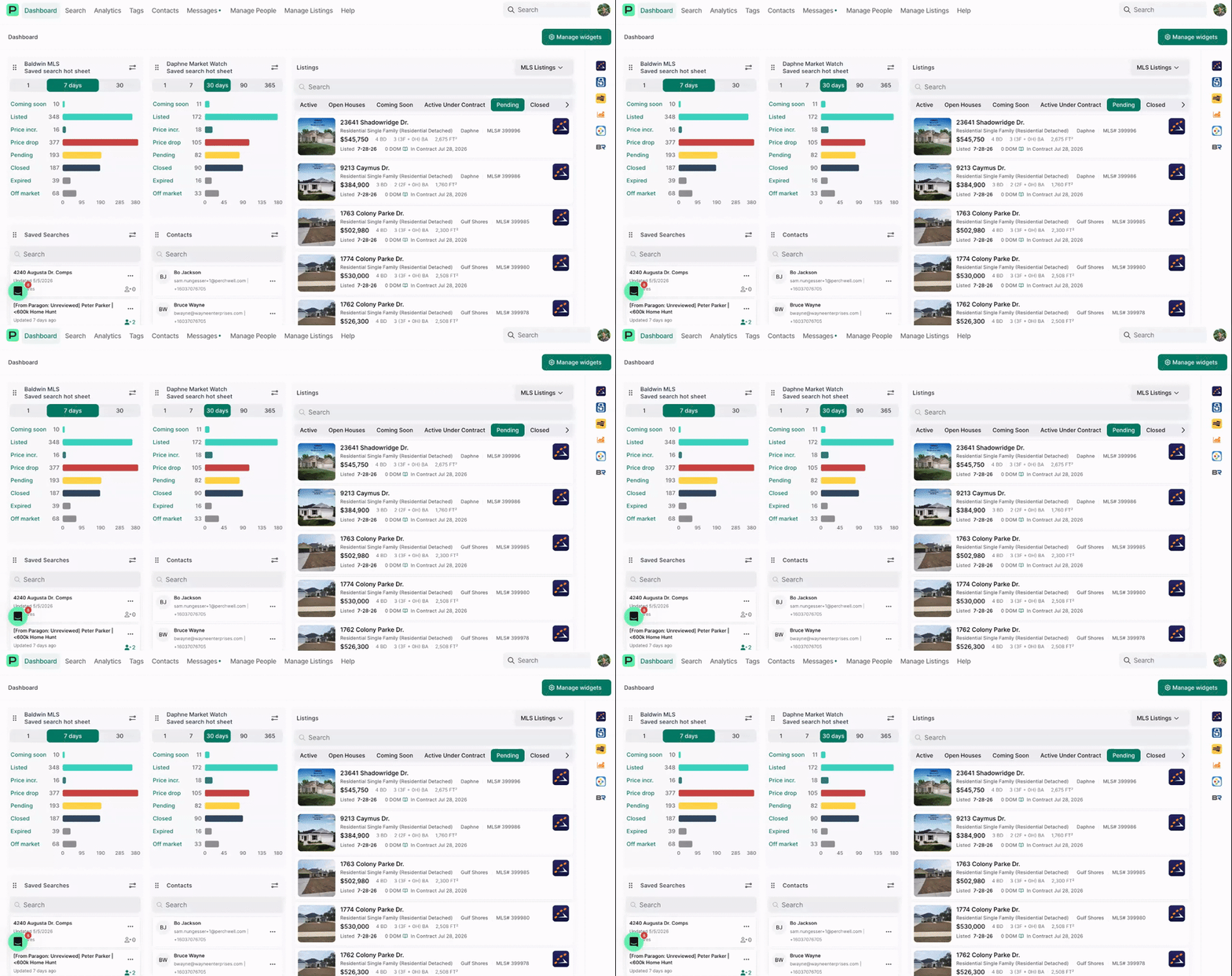
Build a hot sheet from a client saved search
Take a search you already saved for a specific client and turn it into a dashboard hot sheet, so their criteria sit alongside your market view.
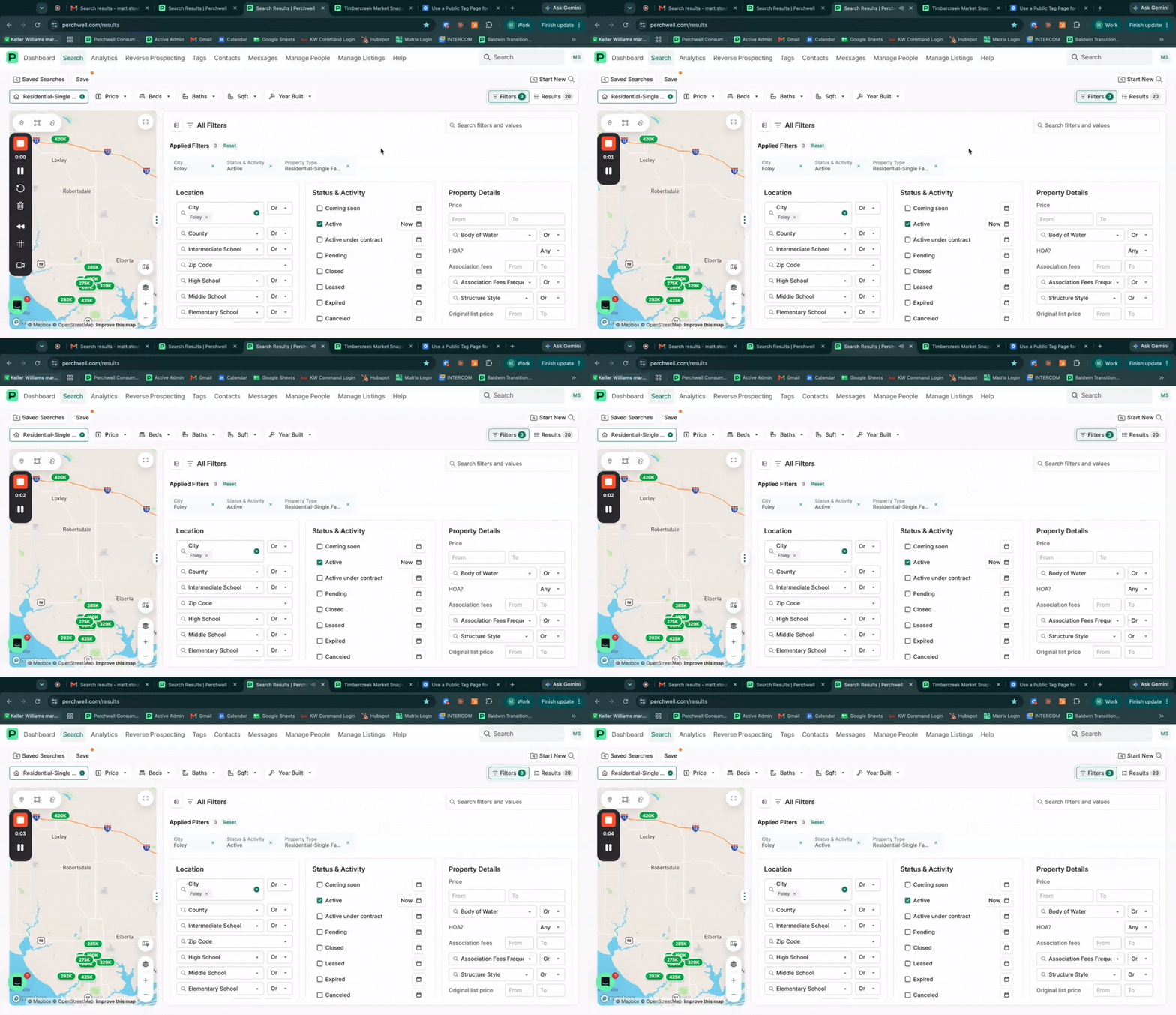
Set up Saved Search alerts
Saved Search alerts give you more options for keeping your clients updated. Choose how often alerts go out: hourly or immediate, daily, weekly, or monthly. You can also pick which kinds of updates to share. In addition to new listings, you can turn on notifications when a matching listing has a status change, a price drop, or a new open house.
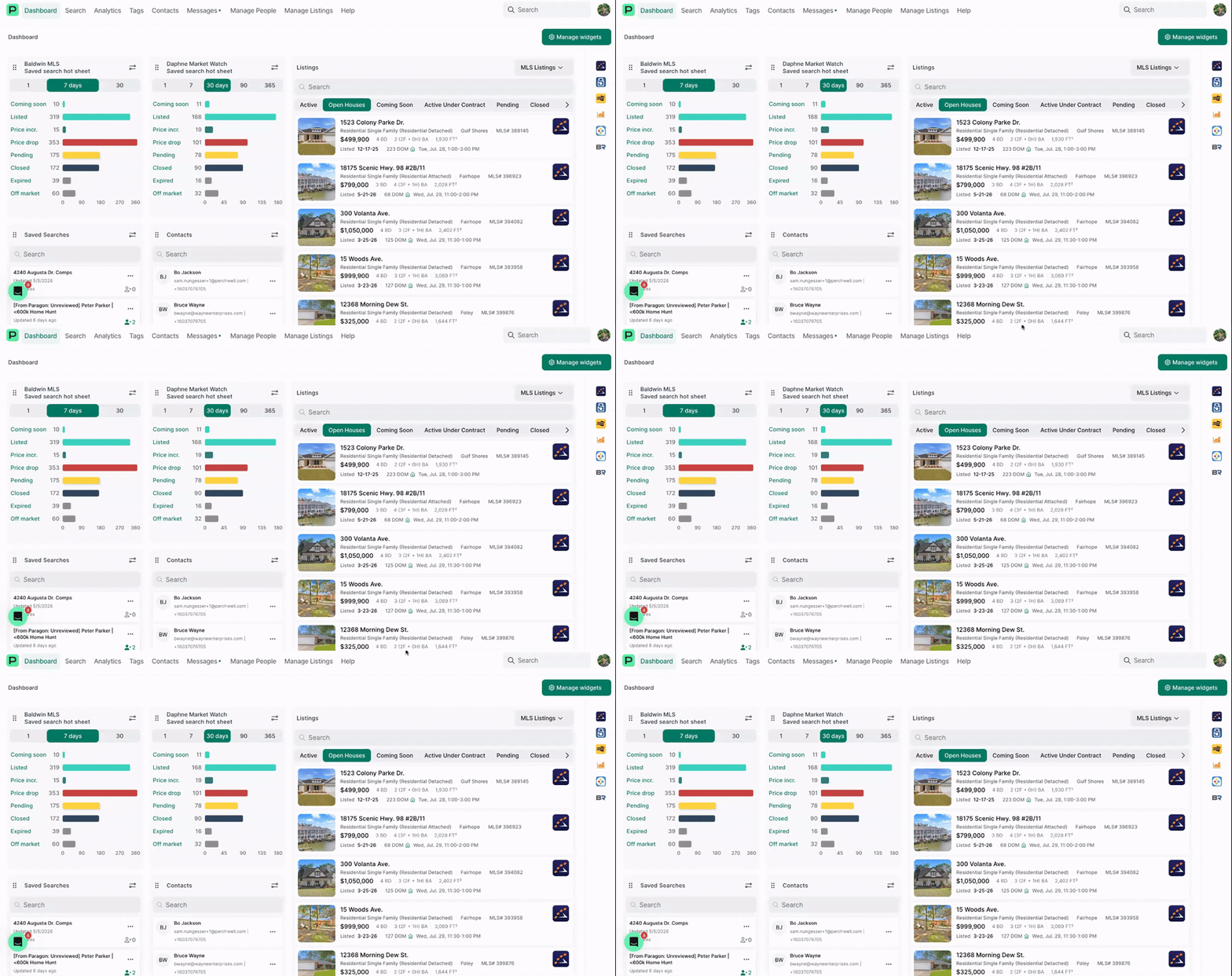
Keep an eye on an area with a hot sheet
To track what is selling, what dropped in price, and what just came on in an area you cover, turn a saved search into a dashboard hot sheet and watch it from your home screen.
Public Tag Pages
Give a client a page of their own to browse and react to, with no login required.
6 videos
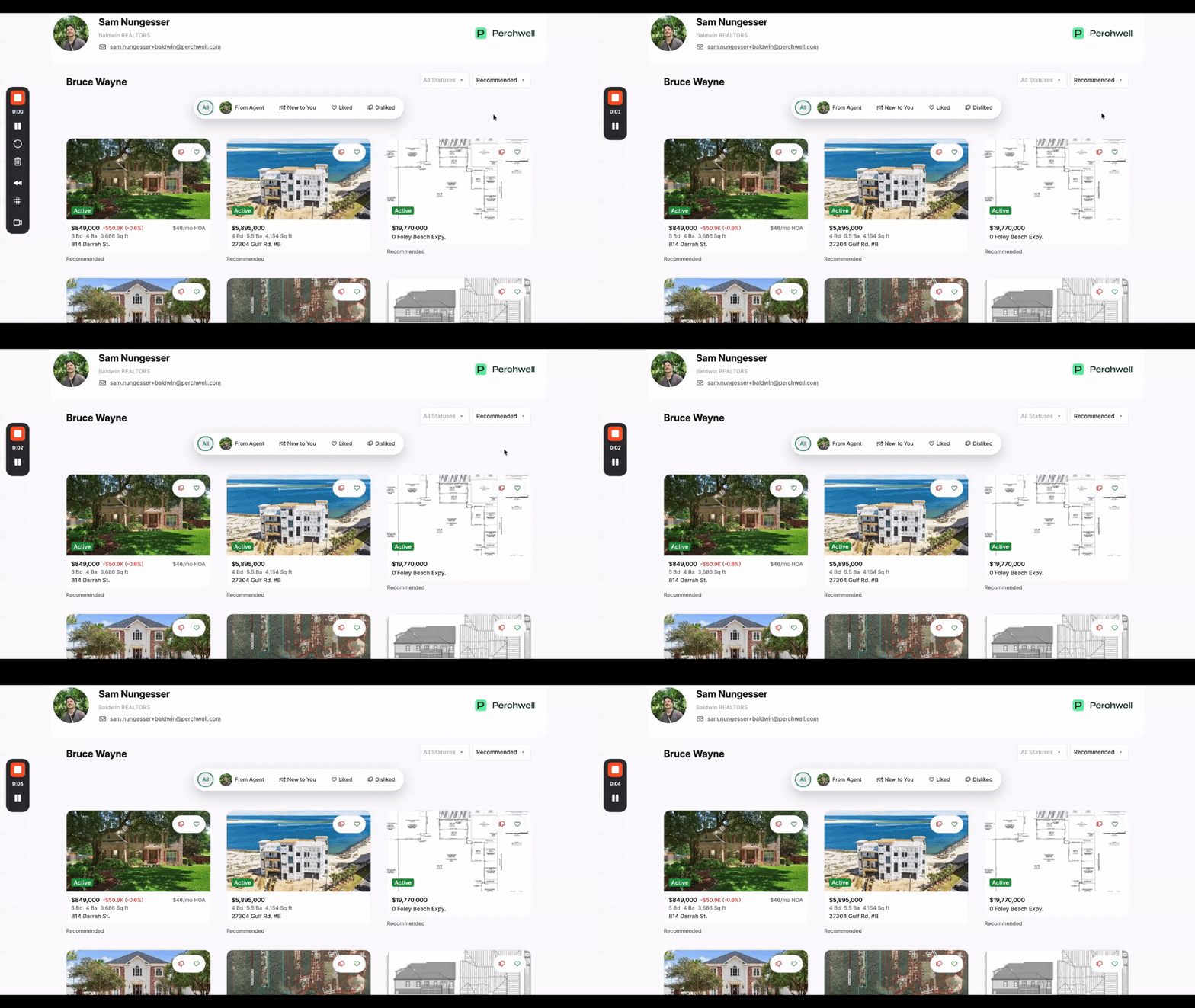
What is a public tag page
A public tag page is a curated portal you create for clients. They open it from a link with no Perchwell account, browse the listings you picked, and react with a heart or a thumbs down so you can move the transaction forward.
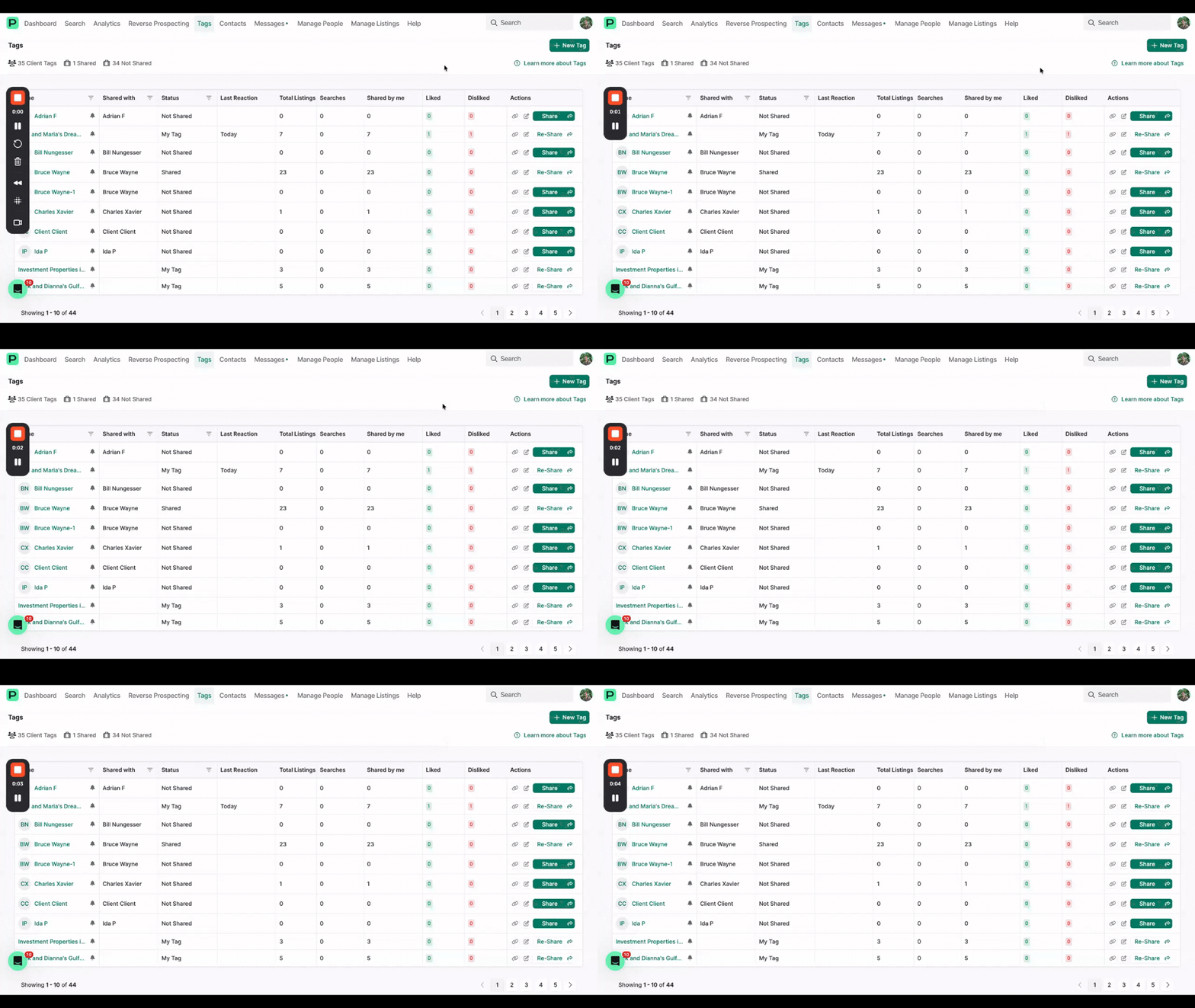
Create a public tag page
Create a tag page, name it so you can find it later, and share it. Once it exists you have a home for everything you want your client to see.
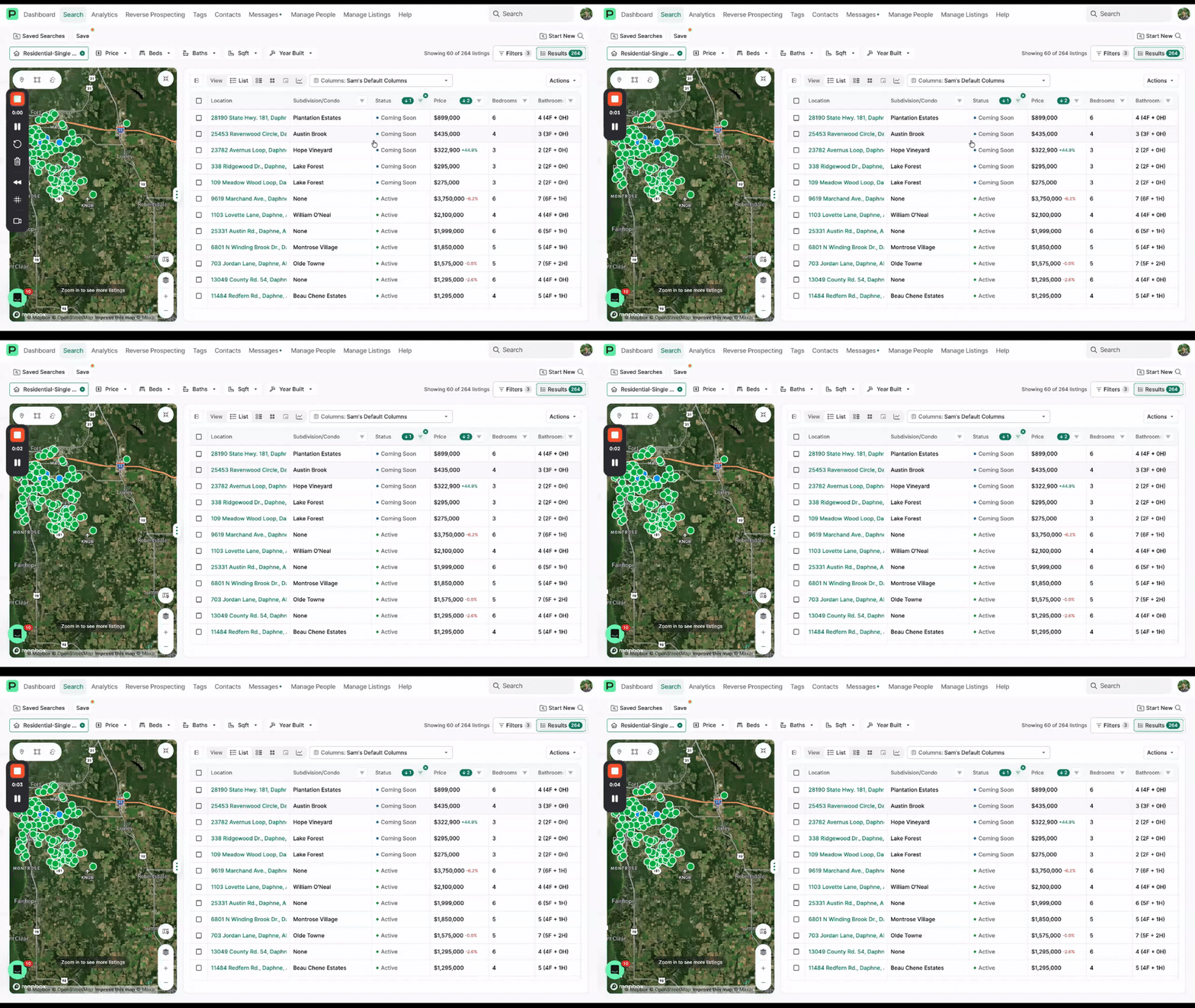
Add listings to a public tag page
Tag listings from search results or from a listing page to drop them onto a client's tag page. Anything you add shows up for them right away, and they can react to each one so you can tell what is worth touring.
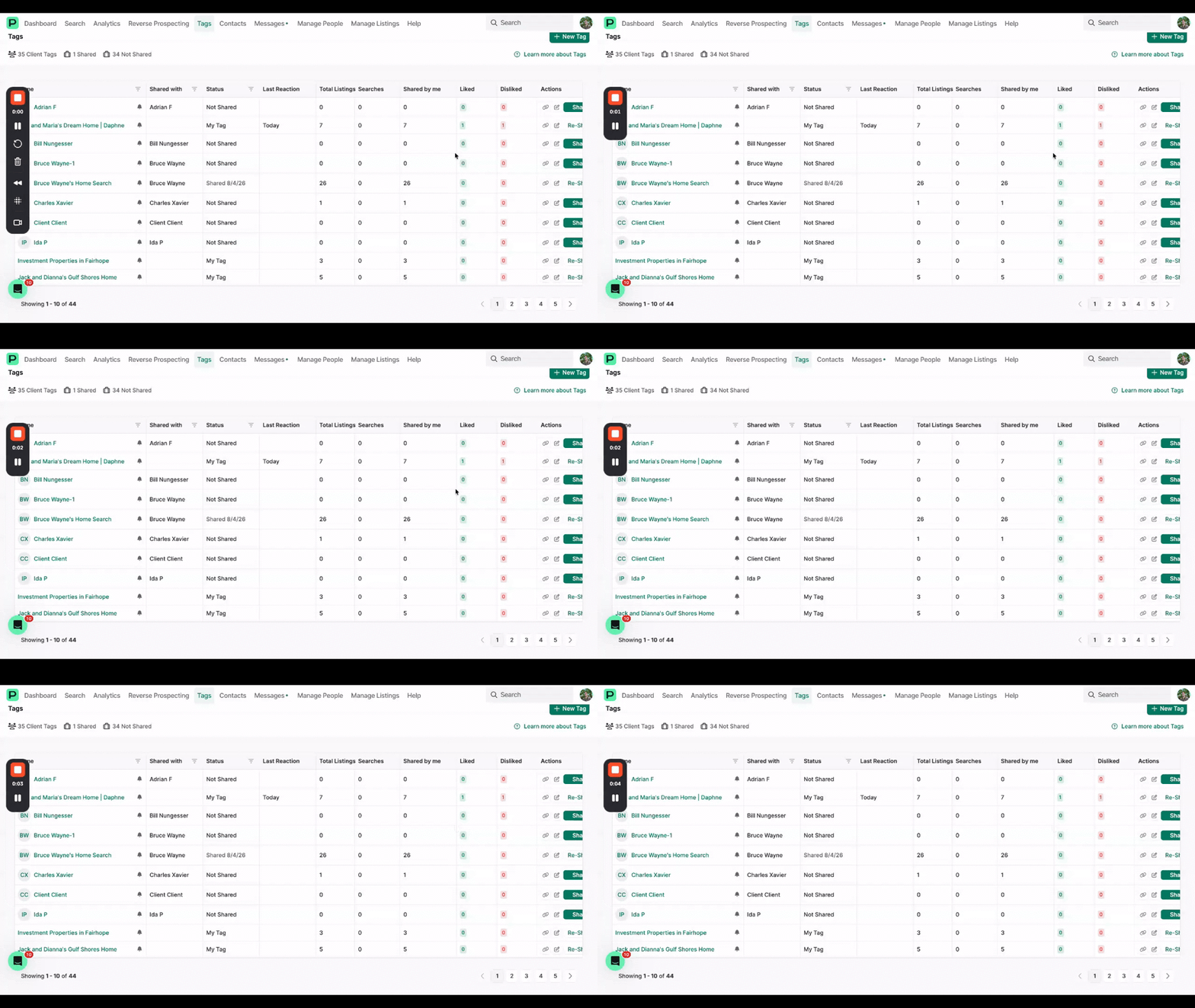
Add a saved search to a public tag page
Attach a saved search to a tags page and it keeps itself current with your client's criteria, so new matches appear without you adding them one at a time. You can also turn on alerts so they hear about price increases, price drops, and status changes as they happen.
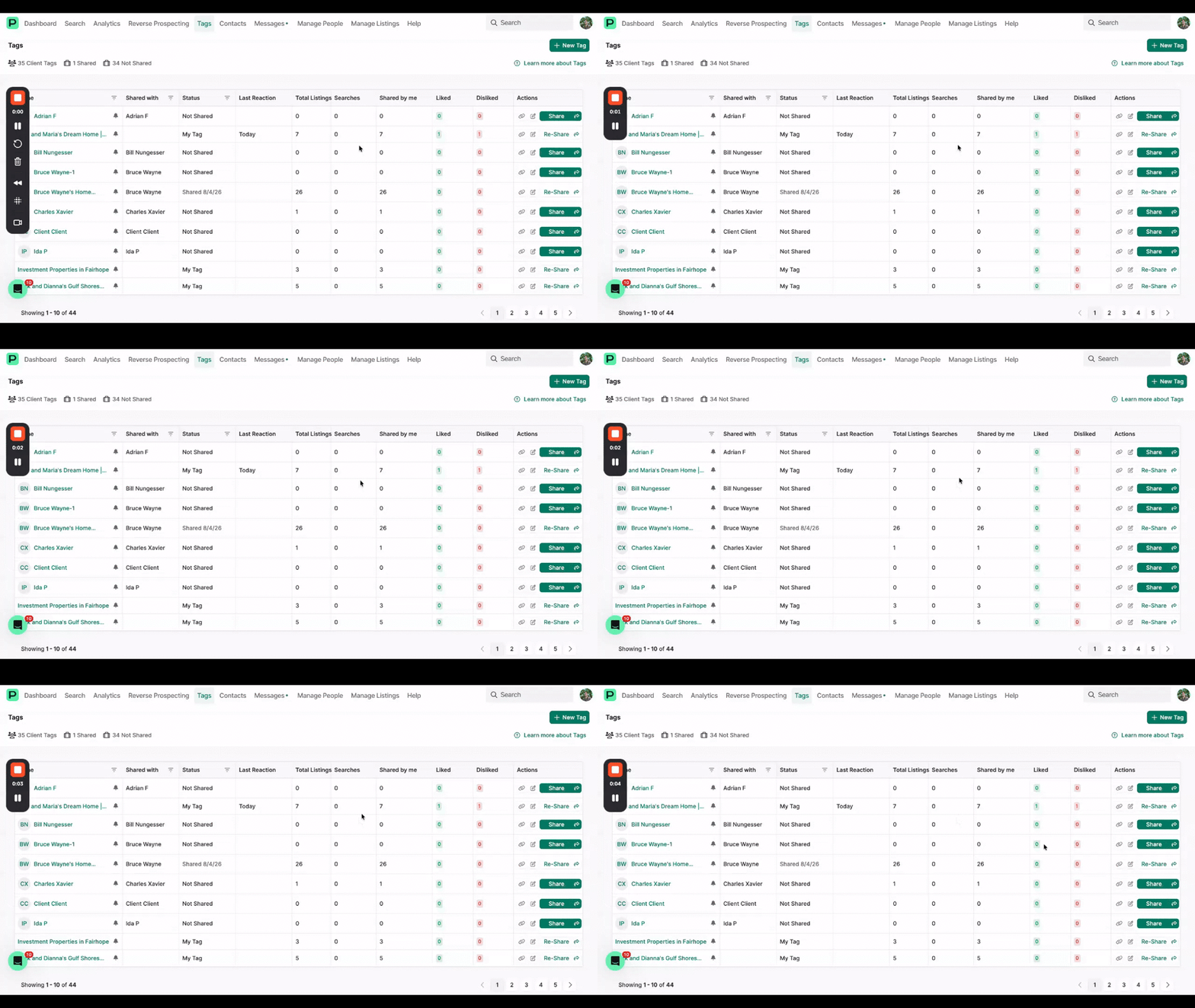
Share a public tag page
Copy the page link and send it however you already talk to your client. They cab open it without logging in, see the listings you curated, and you are notified when they interact with the listings.
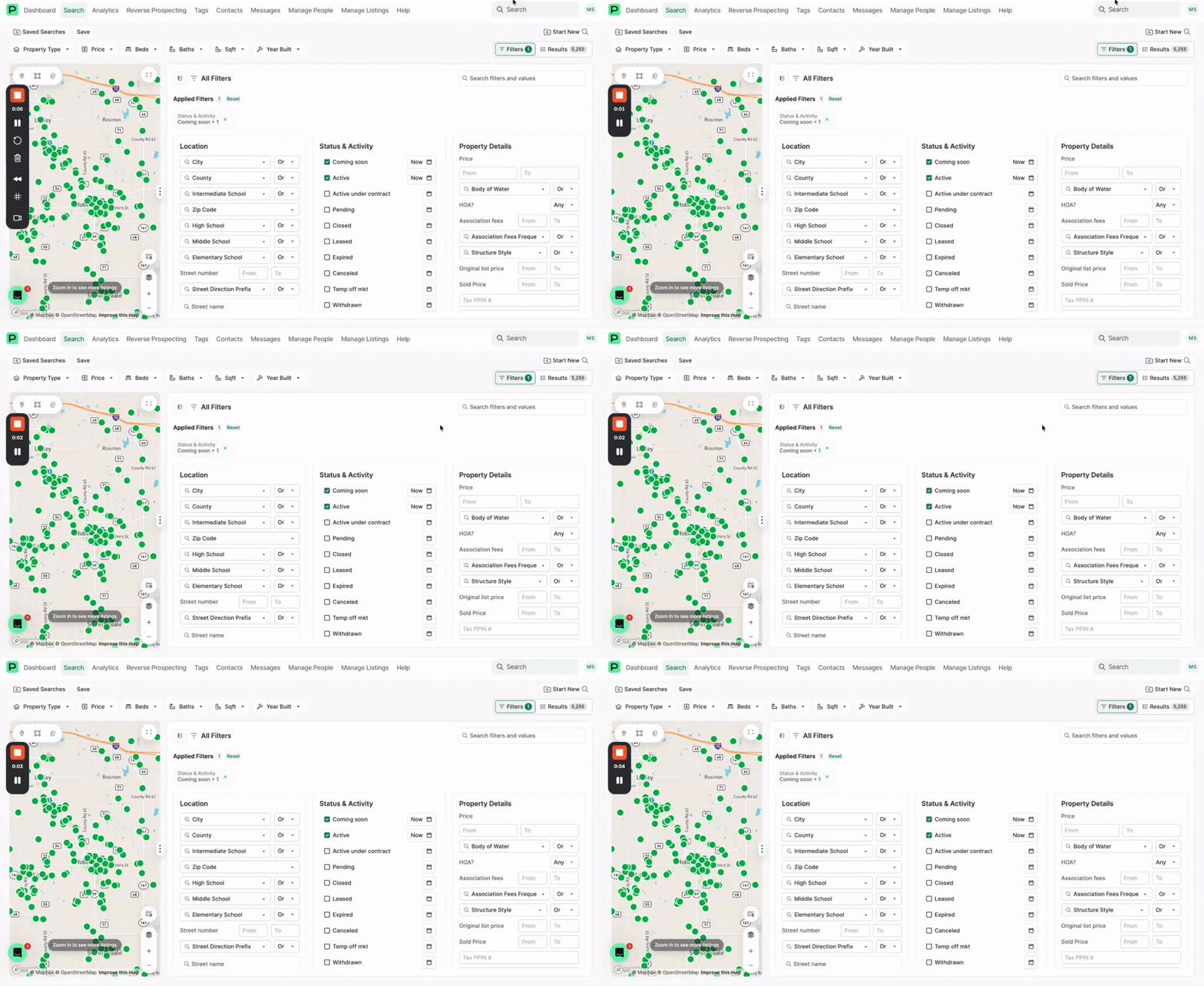
Use a public tag page for marketing newsletters and social media
Turn a saved search into a public tag page you can share in a newsletter or social post. Save a search for a subdivision with active, under contract, pending, and recently closed listings, tag the results, then publish the tag page as a live neighborhood market snapshot anyone can open without logging in.
Showings and Printing
Book showings, plan the route, and bring printed reports to the appointment.
3 videos
Schedule showings for listings
Contact listing agents one at a time or in bulk to book showing times. You can pull in properties with open houses and build a route for the showings you have scheduled, so the day plans itself.
Print reports to bring to an appointment
When you are walking properties with a client, print the full property page for each listing and bring the stack with you.
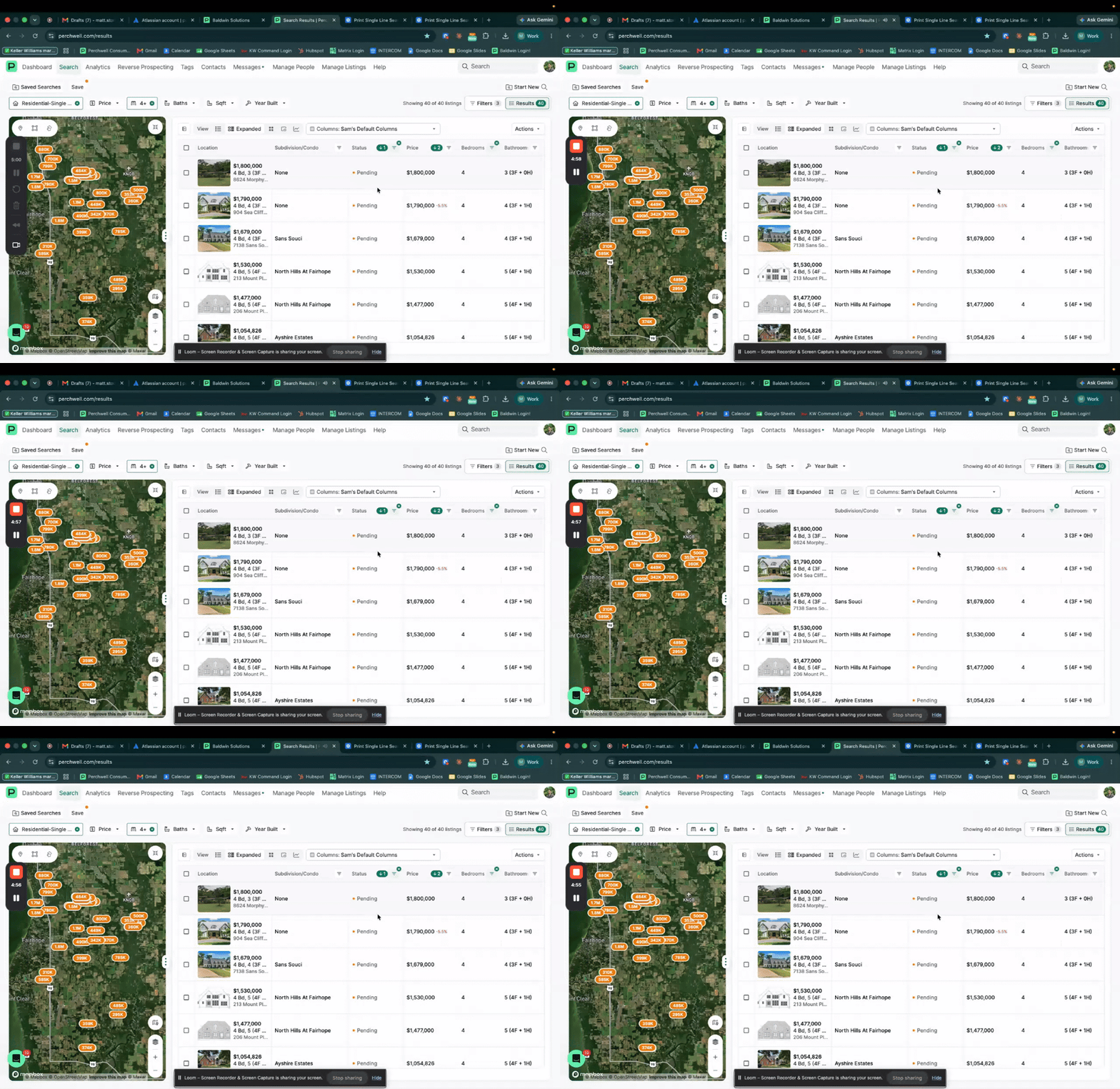
Print your search results as a PDF
Turn a full set of search results into a printable, single line PDF using the columns you have already selected. Handy for handing a client a clean list or bringing one with you to an appointment.
Listings and CMAs
Enter a new listing with autofill doing the first pass, then price it with a CMA you can send to the seller.
2 videos
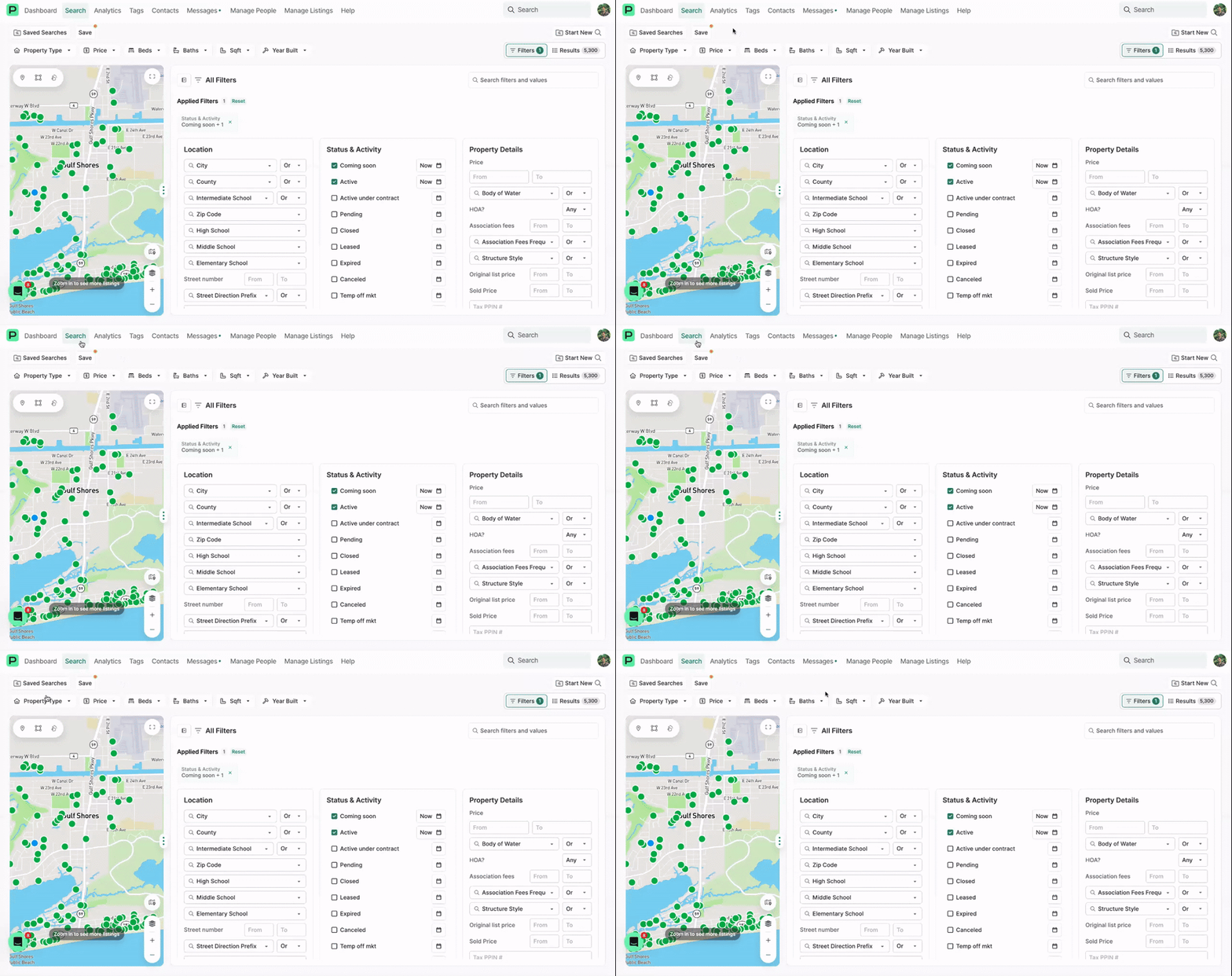
Build a CMA and share it with your client
To land on the right listing price, pull comparable properties in the area using the distance radius, select the ones that make your case, and build a Quick CMA. It shows your client what similar homes are going for and what they offer, and you can send it straight over.
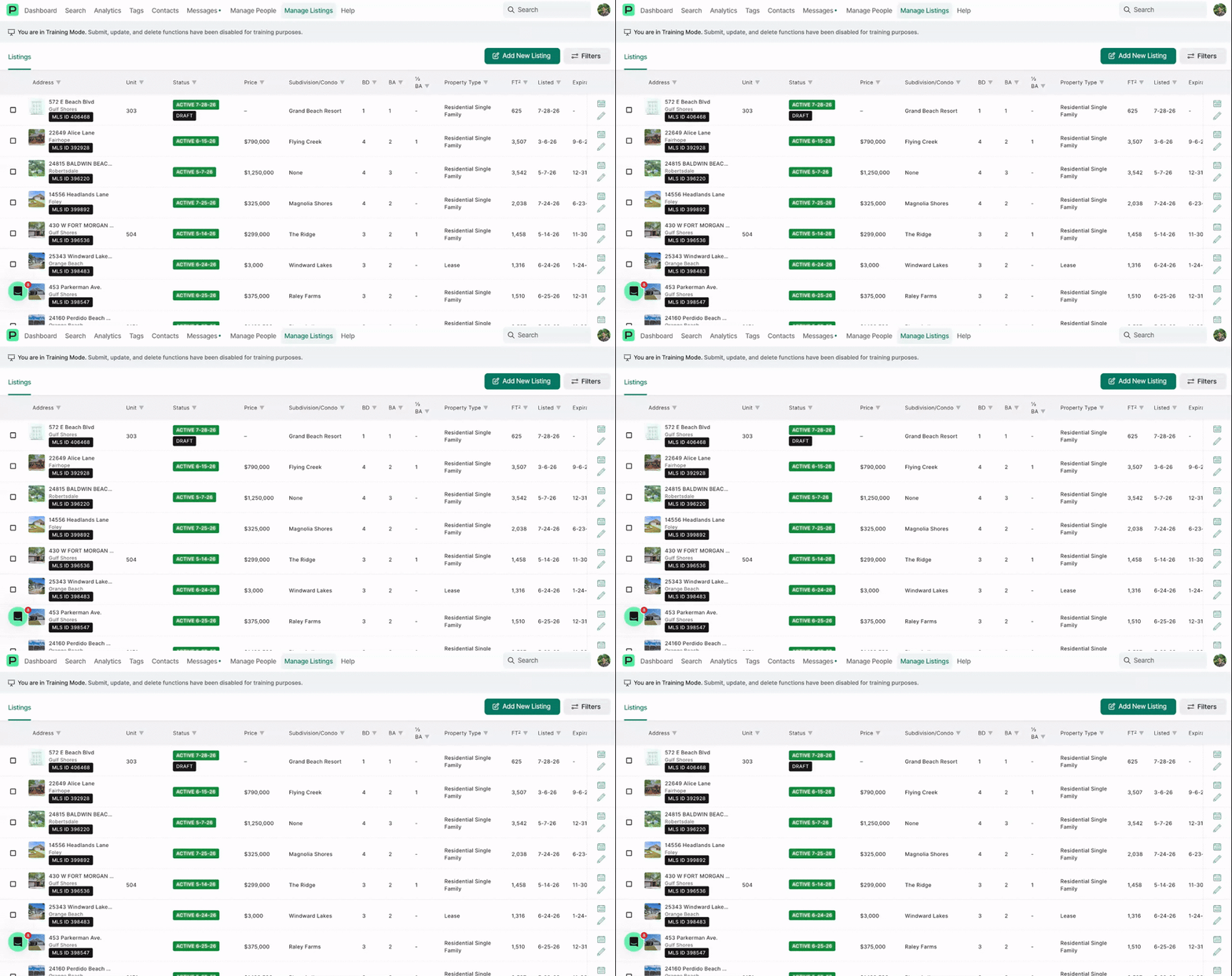
Enter a draft listing and understand autofill
When you start a new listing, Perchwell fills in what it already knows, including address, tax, and other public data, so you are not typing from scratch. This walks through what arrives automatically and what you still need to enter. To save a partial as a draft you only need a handful of required fields, and the rest can wait. One thing worth knowing: the active date shown above a draft's status is the date it is set to go live, not today's date.
Reverse Prospecting
Reach agents whose buyers match your listing, and decide when your own client searches stay private.
2 videos
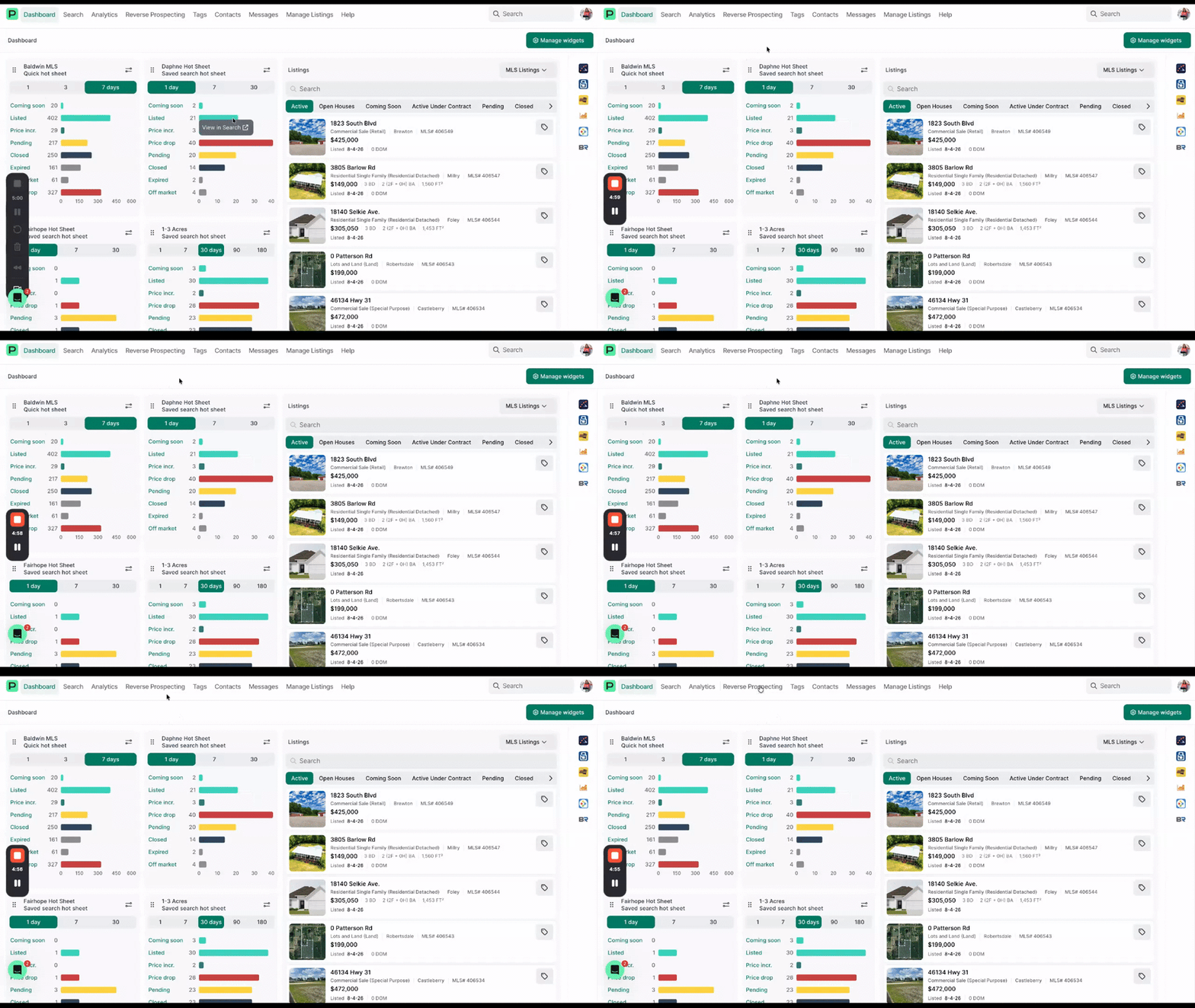
Contact agents through Reverse Prospecting
From the Reverse Prospecting page, select a listing, review the agents whose saved searches match it, choose up to ten at a time, adjust the subject and message, and send. The email links each agent back to their own search, and the table records when you last reached out so you know who to follow up with.
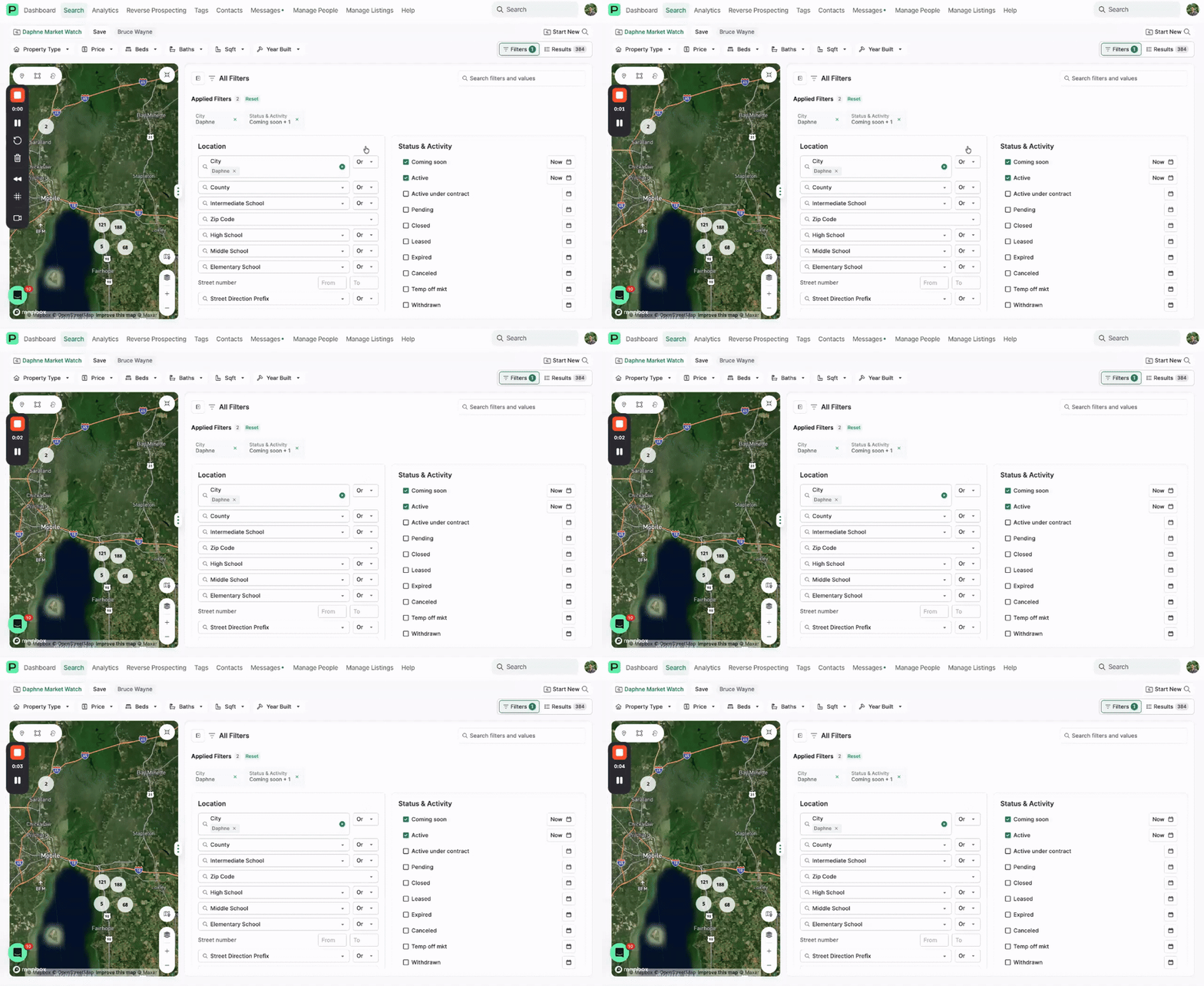
Control Reverse Prospecting visibility on searches and clients
When a saved search matches a listing, the listing agent can reach out to you. Your client's name and search name stay hidden. If you want to stay closed on sensitive searches, turn Reverse Prospecting off for that single search, or turn it off at the client level to cover every search you run for that person.
Mobile App
Search, share, and manage listings from your phone when you are away from your desk.
4 videos
Search for listings in the mobile app
Run a search from your phone: set filters, browse results, and narrow things down while you are out in the field.
Add and edit listings in the mobile app
Enter a new listing from your phone and make edits to an existing one, so updates do not have to wait until you are back at a desk.
Contact agents and add notes in the mobile app
Reach out to another agent straight from a listing on your phone, and jot down notes while the details are fresh.
Share listings and run a report in the mobile app
Send listings to a client and pull a report from your phone, so follow up happens before you leave the driveway.